
Well Drillers & Pump Installers
With CertTracker, all licensed Well Drillers and Pump Installers have access to view and update their very own license profile. CertTracker (CT) allows individuals (or a proxy) to manage contact information, preferences, and renew licenses.
Note: In CertTracker, all licensees – Pump Installers and Well Drillers included – are considered “Operators.”
Benefits being brought to you with CertTracker:
- Renew your license and pay fees online!
- More control managing contact details in real time!
- Manage all your Licenses (Well Driller, Pump Installer, Site Evaluator, and DW Operator) in one profile!
Go to the CertTracker Users' Guide
This is a major change in our licensing process for water industry professionals, and we have developed written and video resources to help guide you through this new service. A few things to be aware of as you log into your profile for the first time:
- Your professional license is your license regardless of who pays the licensing fees. We encourage licensees to include at least one personal point of contact (email or mailing address) in their profile. Be mindful of using only your work addresses in your profile: if you change jobs but do not update your CertTracker profile, you run the risk of missing important communications.
- Whenever this kind of transition is undertaken, data errors will occur. We have made every attempt to ensure data is accurate, but some Operator information may have transferred not exactly right. We ask that you spend time reviewing your profile and make corrections where necessary.
- The Users' Guide (below) highlights different aspects of CertTracker and how to use them. Click on a heading for written guidance as well as links to training video clips (CertTracker Training Tidbits).
- A video playlist has been created to demonstrate instructions provided on this website. You can access the playlist here: CertTracker Tidbits for Well Drillers and Pump Installers - YouTube
- If you don’t find what you are looking for, or need additional assistance, please reach out to the Maine Drinking Water Program:
- Phone (207) 287-2070
- Email DWPLicensing.DHHS@maine.gov
CertTracker Users' Guide
- Creating a Password for CertTracker
This is where it all begins! All licensees in our database have a profile created using data we already had on file. But, before you can access your specific Operator profile, you must first create a password. Follow the steps below or watch the CertTracker Training Tidbits episode Changing Your Password to learn how to do this. (For anyone who manages Operator accounts as a proxy, start by reading the information under ‘Setting Up a Proxy Account’ further down on the list of categories.)
You can use CertTracker both on a smartphone with data or a computer that has internet access. CertTracker works the best when used in the Chrome or Edge internet browsers.
- Navigate to the GEC Account Login screen
• Note: This screen will not identify as CertTracker
• Do NOT log in with Google or Microsoft credentials.
- Click on ‘Forgot your password?’ lower on the Login page.
- Enter your primary email address on file with Maine DWP. Be sure to use the same email address we currently use to communicate with you or CertTracker will not be able to find your profile. The September 21 bulletin email was sent to the address we have in our records.
- After you have access to your account, you can change the email you are using for your profile as needed.
- Once you have entered your password, click ‘Email Link’. An email will be sent to you with a link to reset your password. This email should be coming from contact@1gec.com. If you don’t see an email arrive, check your spam/junk folder.
- Click the link in the email and create a password for your CertTracker account. Make sure to follow the password requirements listed there.
Video: CertTracker Training Tidbits - Changing your Password
- Navigate to the GEC Account Login screen
- Logging Into CertTracker
This can only occur after you have created a password for your account. See ‘Creating a Password for CertTracker’ (above) to complete that step. This is how you will access your profile each time. Watch the CertTracker Training Tidbits episode Operator Login and Dashboard Tour or follow the written directions below.
- Once you have created a password, go to the CertTracker login page.
- Enter your email and hit ‘Enter’ on your keyboard or click the grey arrow on the right of the screen.
- Enter your password and hit ‘Enter’ on your keyboard or click the grey arrow on the right of the screen.
Video: CertTracker Training Tidbits - Operator Login and Dashboard Tour
- Once you have created a password, go to the CertTracker login page.
- Contact Information / Operator Details
The ‘Operator Details’ area is mainly for your name, email, and operator type. Here are a few things to consider when updating your Operator Details:
- Middle Initial: In Maine we have many licensed Operators with the same first or last name. Because of this, we try to include a middle initial when available. If you have a middle name and your profile does not include a middle initial, please add that to your ‘First Name’ field as a single capitol letter.
- Email Updates: If you would prefer to change your email, you are able to do so here. Once you update your email address, you should be able to use that new email to login to your account.
Most of the other details in this area are not currently used.
Watch this CertTracker Training Tidbits episode: Operator Details Changes - or follow the directions below to update your details.
To Review or make changes,
- Click on ‘Operator Details’ to expand that area of your profile.
- To make changes, type the updated information into the box you would like to change.
- Click ‘Update Operator Profile’ on the bottom of this area.
Video: CertTracker Training Tidbits - Operator Details Changes
- Middle Initial: In Maine we have many licensed Operators with the same first or last name. Because of this, we try to include a middle initial when available. If you have a middle name and your profile does not include a middle initial, please add that to your ‘First Name’ field as a single capitol letter.
- Addresses
The ‘Address’ area is where you can manage the mailing addresses in your account, including identifying your ‘primary’ address (for DWP licensing communications). If you have a couple of different licenses, each license can have its own address. Operators are urged to have both a Home and Work address included in their profile; we encourage using your Home address as the primary.
Watch the CertTracker Training Tidbits episode Operator Address Review and Edit or follow the instructions below to edit or make changes.
To review or make changes,
- click on ‘Addresses’ to expand that area of your profile.
• If this information looks good, there is nothing more you need to do.
- If you would like to make changes to a current address, click ‘Edit’ on the righthand side of the address you would like to edit.
- This will bring up a dialog box where you can update the information you need to change.
To make an address to your Primary Address, select the checkbox near the top of the dialog box.
- Once you have updated that address, select ‘Update Address’ near the bottom of the dialog box to save your updates. If you decide not to save your changes, simply click ‘Close’.
If there is an address you would like to add,
- Click ‘+Add New Record’ at the top left of the address list.
- Enter in the information for the new address
- Click ‘Save Address’.
Please Note: If you would like to add a city and it isn’t an option in the drop-down list, let us know.
- Cities will not show up if no state has been selected for the entry.
- Cities are loaded for options based on the state that was selected.
Video: CertTracker Training Tidbits - Operator Address Review and Edit
- click on ‘Addresses’ to expand that area of your profile.
- Education
The ‘Education’ area is where your education is listed on your profile. You can edit and update your education as needed. While a High School/Equivalent is required for Drinking Water Operator licensure, there are no education requirements for Well Drillers and Pump Installers (the Drinking Water Program has assigned a high school degree to each well driller and pump installer licensee for administrative purposes). You are more than welcome to include additional education in your profile.
- Experience
The ‘Experience’ area of your profile contains your applicable experience. Experience qualifications for Pump Installers and Well Drillers are reviewed by the Maine Water Well Commission. Individual licensees are not required to update this section of their profile.
- Renewal
Licensees who are due for renewal at the end of 2026 should verify that their profile details are accurate. Masters in charge of company licenses should be renewing the company license (as well as their own) and identifying the Apprentices and Journeymen that are working under them (included as an attachment to their renewal).
Once you have met the criteria to renew your license, watch CertTracker Training Tidbits episode Operator Renewal or follow the steps listed below to renew.
- Log into your Cert Tracker profile. Your current active licenses will be displayed at the bottom of your home page.
- If you only have one certificate, there will be a ‘Renew’ button at the bottom of that certificate. Click ‘Renew’ to start the renewal process.
- If you have more than one active certificate, there will be three dots (...) in the top right of the box around your active certificates. There will be two options, ‘Renew Criteria’ and ‘Renew’. Select ‘Renew’ to start the renewal process.
- Your ‘License’ page will open, offering three categories: ‘Test(s)’, ‘Fees’, and ‘Attachments’.
- Under ‘Attachments’, please attach your completed renewal form.
- Click on ‘Fees’ for options:
- +Report Payment – used if your payment anything other than online, or
- +Make Online Payment – which will take you directly to the online payment options.
- After payment has been submitted, click the checkbox to declare the information you provided is accurate.
- Click ‘Apply’ to finish submitting your renewal to the DWP.
- Log into your Cert Tracker profile. Your current active licenses will be displayed at the bottom of your home page.
- Setting Up a Proxy Account
Well drilling, pump installer, or geothermal companies that manage renewal/fees for the Operators in their employ are called “Proxies”. These entities must register for a Proxy Account in CertTracker in order to renew licenses and pay the accompanying fees for all of the Operators they manage (the individual Operators will still be able to log into their profiles as well).
Note: The ‘Find Courses’ button in the top lefthand corner of the Proxy dashboard is for Drinking Water Operators only.
Watch these episodes of CertTracker Training Tidbits (Proxy Registration Request; Proxy Email Confirmation and Approval; Proxy Login) or follow the instructions below to set up and learn how to navigate around in CertTracker.
First, you will need to set up a CertTracker Account.
- Navigate to the GEC Account Login screen
• Note: This screen will not identify as CertTracker
• Do NOT log in with Google or Microsoft credentials.
- Click on ‘New here? Register…’ underneath the forgot password link.
- At the Registration page, input all of the required information.
Please note:
• The correct response to 'Agency' is "Maine Drinking Water Program";
• The correct response to 'Application' is "Certification Tracker".
- Create your username, password, and PIN, then click ‘Register’ at the bottom of the screen.
- You will be sent an email from ‘contact@1gec.com’ with a confirmation link. Click that link to confirm your email. If you need a new email sent, call the DWP at (207) 441-9244 or email DWPLicensing.DHHS@maine.gov.
- Complete and submit the Proxy User Request form, identifying all of the Operators you will manage through your account.
- Video: CertTracker Training Tidbits - Proxy Registration Request
- Video: CertTracker Training Tidbits - Proxy Email Confirmation and Approval
- Video: CertTracker Training Tidbits - Proxy Login
Once all of these steps have been completed and the DWP has approved and assigned Operators to your account, you will be able to log-in to your account.
- The number of assigned Operators will appear in the top right of your profile.
- To find a specific Operator’s profile (to renew, or review information) type either their first or last name into the ‘Go to Operator Profile’ field in the middle of the Dashboard screen. A list of your Operators who have similar names will appear in a drop-down menu. Select the operator profile you would like to see.
- This will bring you to the Operator Profile. To renew, select the renew button on the certificate you would like to renew.
- To find a specific Operator’s profile (to renew, or review information) type either their first or last name into the ‘Go to Operator Profile’ field in the middle of the Dashboard screen. A list of your Operators who have similar names will appear in a drop-down menu. Select the operator profile you would like to see.
- Navigate to the GEC Account Login screen
- Troubleshooting in CertTracker
Occasionally Operators will find themselves prevented from editing their profile, even when following the prescribed procedure in our instructions and videos. In most instances, a red alert box will appear after clicking ‘Save’ providing a description of the issue – and quite often this will enable the user to resolve the issue on their own. These descriptions can also be helpful when reaching out to the DWP for assistance. (If you do need to reach out to the DWP for help, a screenshot of the error alert can help us determine what may be preventing your request from completing.).
A few specific examples:
When trying to update Operator details (like your name or email) a red error message pops up: Some fields are invalid! The AddressType field is required.
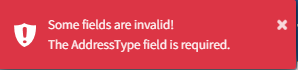
- This suggests the Address Type (Home, Work, etc.) is not indicated, and that would prevent all other Operator details from being updated. See the ‘Addresses’ category above with information on how to update that.
- After updating your address type, be sure to ‘refresh’ your web browser screen for those changes to apply to your profile. After refreshing the screen, you will be allowed to update your Operator details. (To refresh your browser window, click on the circle-arrow in the upper left of your screen near the website address line, or, using your keyboard, type Ctrl+R. )
- This suggests the Address Type (Home, Work, etc.) is not indicated, and that would prevent all other Operator details from being updated. See the ‘Addresses’ category above with information on how to update that.
- Information in your profile has errors, but you are unable to make corrections. If you are missing a certificate or something is incorrect in an area you are not able to edit, contact the DWP for assistance.
- You do not have the option to renew a license (the ‘Renew’ button on your certificate is deactivated). This will occur automatically in CertTracker if an Operator does not meet the requirements to renew, such as an error in their profile information. This can be corrected by making sure those parts of your profile are accurate.
- Additional Help
If you have reviewed the resources above and are experiencing errors in your CertTracker profile that you are unable to resolve, please reach out to us for assistance. We are more than happy to help you through this transition period. Due to staffing issues, Operators might initially experience long hold times or delays in receiving responses to questions. We appreciate your patience, and will help you as quickly as we can.
- Phone assistance: (207) 287-2070 (DWP main line)
- Email assistance: DWPLicensing.DHHS@maine.gov
- Phone assistance: (207) 287-2070 (DWP main line)