Interfaces

Manual & Reference Material
Description Date Format
Batch Interface Event (BIE) Manual 08/11/2011 PDF
Batch Interface Partner Contact List 08/07/2025 Excel


INTERFACE FILES (Inbound and Outbound)

Inbound Interface Files
Type - INF Description Date Format
INF File Specifications New General System Design for INF File 04/03/2006 MFASISINF.GSD
 
Type - Cash Receipts Description Date Format
CR Document Specifications New General System Design for CR File 06/17/2010 MFASISCR.GSD
CR XML Schema XML Schema used to validate files for testing 06/17/2010 CR.XSD.XML
CRCC Document Specifications New General System Design for CRCC File 06/17/2010 MFASISCRCC.GSD
CRCC XML Schema XML Schema used to validate files for testing 06/17/2010 CRCC.XSD.XML
CREF Document Specifications New General System Design for CREF File 06/17/2010 MFASISCREF.GSD
CREF XML Schema XML Schema used to validate files for testing 06/27/2010 CREF.XSD.XML
 
Type - GAX Description Date Format
GAX Document Specifications New General System Design for Payment Voucher Interface 11/10/2021 MFASISGAX.GSD
GAX XML Schema XML Schema used to validate files for testing 02/02/2009 GAX.XSD.XML

The first attachment (MFASISGAX.GSD)contains the new design for the Payment Voucher (PV) interface. In new system terms, the new documents are referred to as "GAX" documents. This GAX design specifications comprise the following:

  • Document definitions and naming conventions
  • Document usage information
  • Logical components of the GAX XML document
  • GAX transaction layout - the current PV attributes are mapped to the new GAX attributes
  • Sample XML GAX document
  • Layout for the current PV document

The second document (GAX.XSD) contains the XML Schema that you can use to "validate" your files before sending them to us for testing.

 
Type - IET Description Date Format
IET Document Specifications New General System Design for IET 05/03/2006 MFASISIET.GSD
IET XML Schema XML Schema used to validate files for testing 05/03/2006 IET.XSD.XML
 
Type - PRC Description Date Format
PRC Document Specification New General System Design for PRC 03/21/2008 MFASISPRC.GSD
PRC XML Schema XML Schema used to validate files for testing 02/02/2009 PRC.XSD.XML
 
Type - RE Description Date Format
RE Document Specifications New General System Design for RE 03/01/2006 MFASISRE.GSD
RE XML Schema XML Schema used to validate files for testing 01/18/2006 RE.XSD.XML
 
Type - VCC Customer Description Date Format
Customer Document Specificiations New General System Design for Customer 02/21/2012 ADVMECUST.GSD
Customer XML Schema XML Schema used to validate files for testing 02/21/2012 CUST.XSD.XML
 
Type - VCC Vendor Description Date Format
Vendor Document Specificiations New General System Design for Vendor 05/26/2010 ADVMEVEND.GSD
Vendor XML Schema XML Schema used to validate files for testing 05/11/2009 VEND.XSD.XML


Outbound Interface Files
Type - Customer Extract Description Date Format
Customer File Specifications New General System Design for Customer File 02/27/2006 MFASISCUSTOMER.GSD
Customer File Specification 2 New General System Design for Customer File 10/26/2007 MFASISCUSTOMER2.GSD
 
Type - Vendor Extract Description Date Format
Vendor File Specifications New General System Design for Vendor File 11/09/2006 MFASISVENDOR.GSD
Vendor File Specification 2 New General System Design for Vendor File 10/26/2007 MFASISVENDOR2.GSD
 
Type - Payment Feedback Description Date Format
Payment Feedback Specifications New General System Design for Payment Feedback 11/06/2006 MFASISFEEDBACK.GSD


Financial Data Warehouse

DAFS Analytics

DAFS Analytics provides a single point of entry for the DAFS Data Warehouse. Depending on credentials, a user will be able to access Accounting, Human Resources/Payroll, and Budget data. Built on the Oracle Analytics Cloud Service (OACS) platform, the tool introduces a host of new features for the State of Maine, including: 

  • Data Visualization and Dashboards
  • Working with Governed and Ungoverned data sets
  • Enhanced sharing functionality, including scheduling agents
  • Improved performance and access to data

The tool provides all data that is currently accessed using GQL, the Cube, or SSRS Report Manager.  In some cases, e.g., Budget, the tool provides access to more data than is available today.  To gain access to DAFS Analytics, reach out to your agency trainer.

DAFS Analytics URL: https://dafs-analytics.maine.gov/analytics

SharePoint site with additional information: https://stateofmaine.sharepoint.com/sites/DAFSAnalytics

For training:

  • New users should contact their designated agency trainer - a list of trainers is available on the DAFS Analytics SharePoint site.
  • Training Materials, including a user manual and training videos, are available on the DAFS Analytics SharePoint site. Oracle also provides comprehensive step-by-step support manuals.

For access:

  • Security Application can be found at the following website, item #3 under Security Applications: http://www.maine.gov/osc/forms
  • Work with your Security Coordinator to submit a Security Form to: DAFSDataWarehouseSupport@maine.gov
  • All users will need to submit a form - even if they have previously been approved for GQL, Cube or SSRS Report Manager access.
  • When logging in, don't enter you User ID and password, just click the link for your branch of Government.

For support:

  • If you need support beyond what you designated trainer can provide, please contact the Data Warehouse team via email at: DAFSDataWarehouseSupport@maine.gov
  • Priority will be given to GQL retirement issues - if you are unable to duplicate a GQL query in DAFS Analytics, please provide an example of how you pull the data in GQL, an the frequency and importance of the data to you.


Update

The DAFS Data Warehouse will be migrating to the Oracle Public Cloud, marking completion of Phase 1 of the modernization projection, on Friday April 21st at 2:00 PM EST and continuing for the remainder of the day. During this time, GQL, "The Cube", and SSRS will be unavailable. The planned availability of GQL, "The Cube" and SSRS is 5:00 PM EST on Friday April 21st.

Moving to the cloud will result in improved response time and cost savings and will allow for a second phase to implement new tools, address security, data integrity and functionality deficiencies identified in the 2015 Gap Analysis and improve overall system performance while further increasing cost savings to the State of Maine. End user testing has begun and will continue through April 7th with a cross section of key resources and users.

General Announcement

The Office of the State Controller maintains various systems to provide State of Maine staff, managers and executives quick and easy access to the financial information needed to make timely and informed decisions.  It is essential that the State continuously improve the tools and techniques that we provide to make available information more consumable, relevant, timely and accessible.  Consistent with those principles, the Office of the State Controller (OSC) initiated this project to modernize and enhance the State's financial data warehouse, to improve the users' ability to access and utilize critical payroll, accounting, budget, and human resource information.  The purpose of this website is to inform users about this initiative, what is planned for the upcoming months, and the goals and objectives for the project.  We will update this website periodically to provide additional information regarding the Data Warehouse Modernization project.

In 1991, OSC implemented the Maine Financial and Administrative Statewide Information System (MFASIS), a mainframe accounting system.  This system integrated accounting, payroll, and human resource functionality into a single system that automated several manual work functions.  To maximize the usability of information contained in and generated by the MFASIS system, the State of Maine developed a financial data warehouse that was implemented in 1996.  The GQL financial data warehouse provided State agencies with access to a wealth of information that could assist them in meeting their reporting and auditing needs.

In 2007, OSC upgraded the MFASIS accounting system to a modernized solution called Advantage, which remains in place today.  GQL continues to be utilized today; however, the changes that were made to the underlying structure of the data in the Advantage system impact the effectiveness of the GQL solution. Since 2007, small systems implemented by various end users to meet their informational needs have proliferated.  Currently, there are at least twenty-six different data extracts providing source data to the GQL financial data warehouse.   Additionally, several State agencies are using two smaller reporting systems, the Cube and Report Manager, in conjunction with the GQL financial data warehouse to meet their reporting requirements. 

In early 2015, OSC collaborated with the Office of Information Technology (OIT) to perform a gap analysis on the State's financial data warehouse and associated reporting solutions, which was published in March of that year.  Overall, the findings indicated the State of Maine should implement a centralized, consolidated enterprise financial data warehouse solution.  In response to these findings, the OSC has initiated a multi-phase data warehouse modernization project to deliver an enterprise financial data analytics and reporting solution.  The first phase of the project will migrate the databases supporting the financial data warehouse, currently hosted in the State's data center, to the Oracle Public Cloud.  Our goal is to make this migration as seamless as possible to all end users.  Users will continue to access data using today's tools with no loss in functionality.  Subsequent phases of the project will implement new tools, address security, data integrity and functionality deficiencies identified in the 2015 Gap Analysis and improve overall system performance. 
 

Advantage

Advantage 3.11 Access

Please make sure to update your bookmarks or favorites with this URL below.

Login Instructions

For Windows:  https://meosc.hostams.com/PRDFIN1X1/Advantage

For MAC:  Use same link through emulator.

Please keep in mind, the website is supported for the following web browsers:

Windows PC Platforms (Desktop):

  • Microsoft Internet Explorer version 11 (For Windows 7) - Phasing out
  • Microsoft Internet Explorer version 11 (For Windows 8, 8.1, and 10) - Phasing out
  • Microsoft Edge v89
  • Mozilla Firefox ESR v78.6
  • Google Chrome v89
  • Safari v13

Mobile Platforms:

  • Apple Safari v13 with iOS 14
  • Chrome v89 with Android 10.x
  • Microsoft Edge v89 with Android 10.x


(Last certification 03/21/2021)


Advantage Hours of Operation:

  • 7 a.m. to 7 p.m. Monday through Friday
  • Some days the system may be up earlier than 7, however that is not guaranteed.
  • On occasion, the application may not be available during normal hours of operation.

For Daily Status or Outages

https://csn.state.me.us/daily-status.php


Frequently Asked Questions

  1. How do I clear my cache?
  2. Are you having problems printing from Advantage?
  3. Are you having trouble opening PDF documents from internet browsers?
  4. How do I check for/add trusted sites?
  5. Are you having trouble printing from the REM's tables?
  6. How do I obtain or update access to Advantage, DocuWare, the Cube, and/or the Data Warehouse?
  7. What is the process for importing CSV file from Document Catalog?


1. How do I clear my cache? (Chrome and Edge)

  1. Edge:
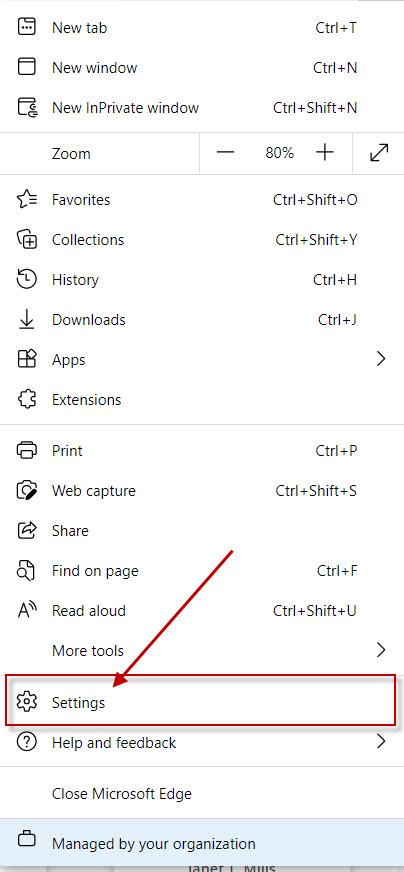
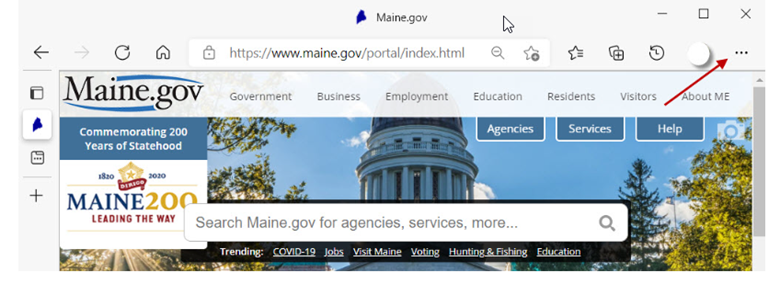
    • Click on three dot (ellipsis) menu at the top-right corner of window
      Elipses menu for Edge

    • Click on Settings
      Click on settings for Edge

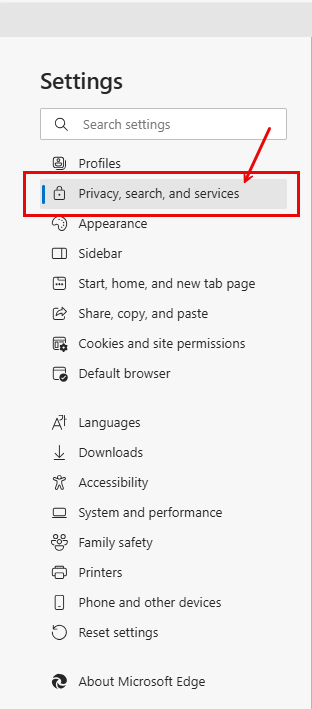
    • Click on Privacy, search and services
      Click on Privacy,search and services

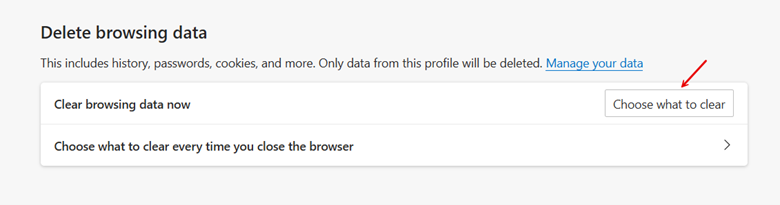
    • Under Delete browsing data, click on Choose what to clear
      Click on Privacy and security option and clear browsing data

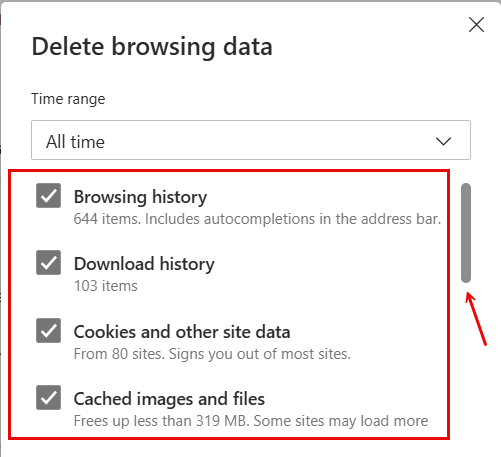
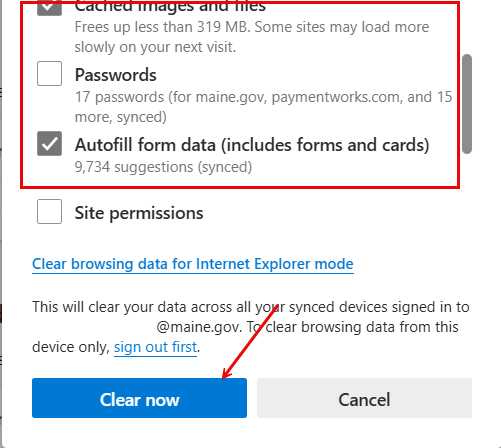
    • Make sure items are selected
      click on clear now option
    • Click Clear Now
      Cache Selection
  2. Chrome:
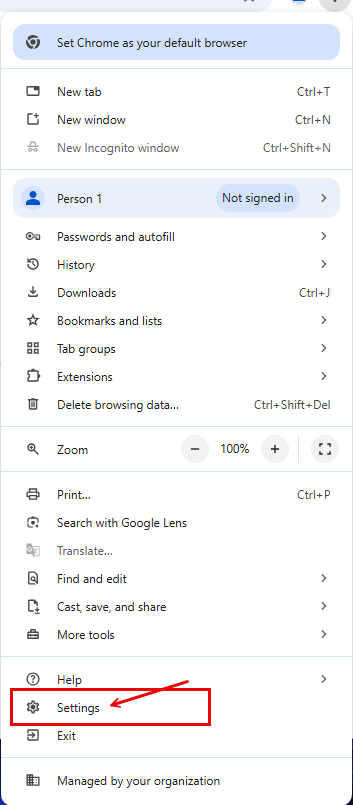
    • Click on three dot (ellipses) menu at the top right-hand side of window
      Elipses menu for Chrome

    • Click on Settings
      click on Chrome settings

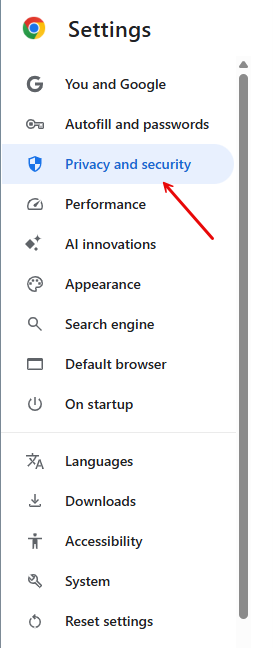
    • Click on Privacy and security
      click on Chrome Privacy and Security option

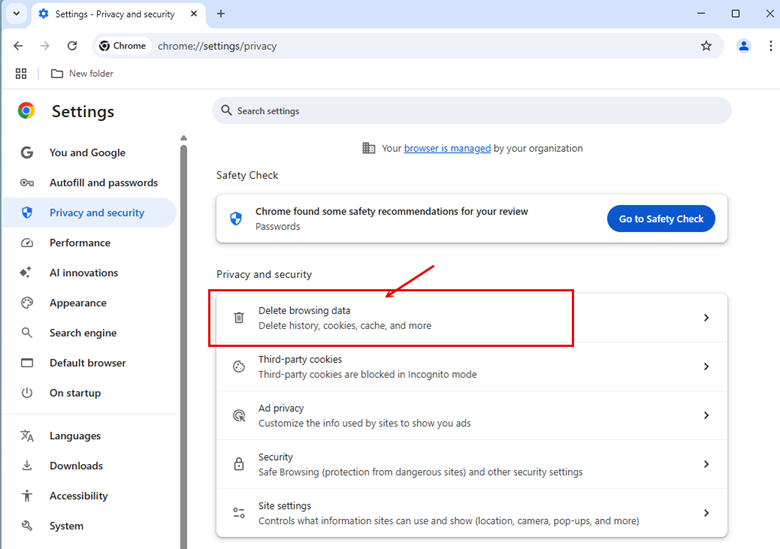
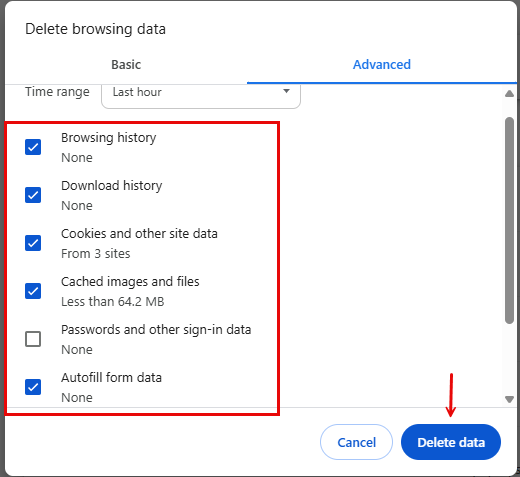
    • Click on Delete browsing data
      click Clear browsing data option

    • Make sure items are selected and click Delete data
      click Clear data option


2. Are you having problems printing from Advantage?

First, be sure that you are using Windows 11 and Adobe version DC.

Then try the following steps to see if they help:

  1. Clear your cache (See FAQ #1 for instructions)
  2. Update settings for PDF (See FAQ #3 for instructions)
  3. Check for trusted sites (See FAQ #4 for instructions)


3. Are you having trouble opening PDF documents from internet browsers?

  1. Edge:
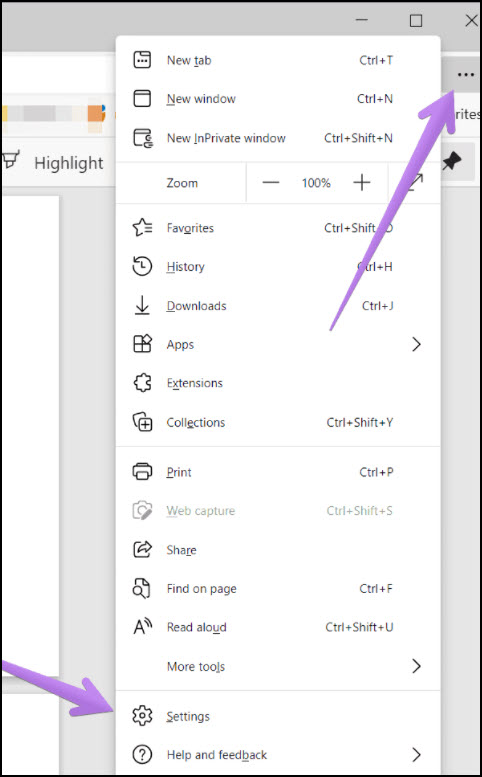
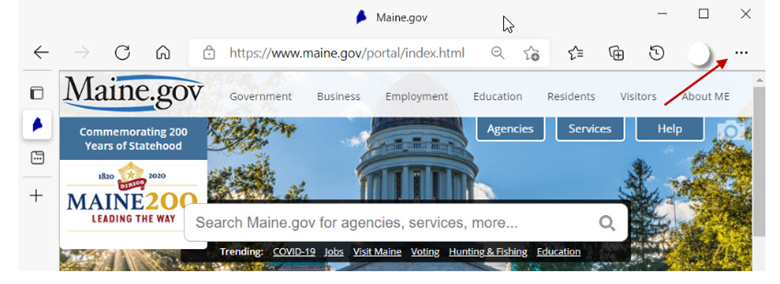
    • Open the Edge browser and click on the three-dot icon at the top-right corner. Select Settings

      PDF settings in Edge browser Image 1

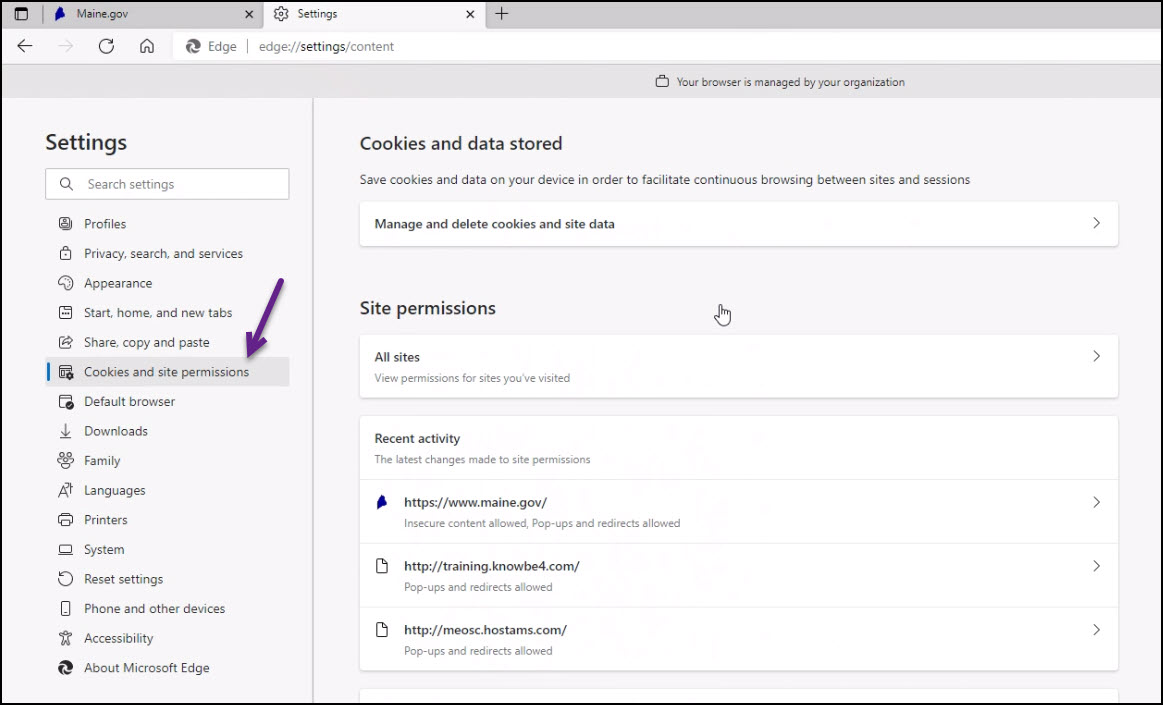
    • Select Cookies and site permissions

      PDF setting in Edge browser image 2

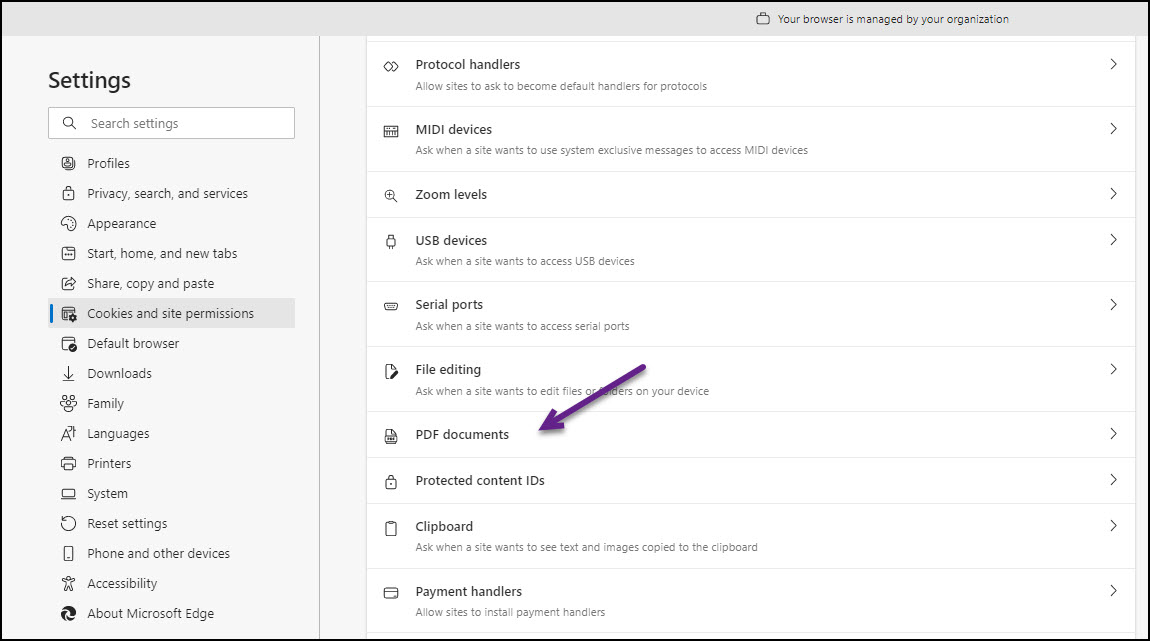
    • Scroll down to PDF documents

      PDF settings in Edge browser image 3

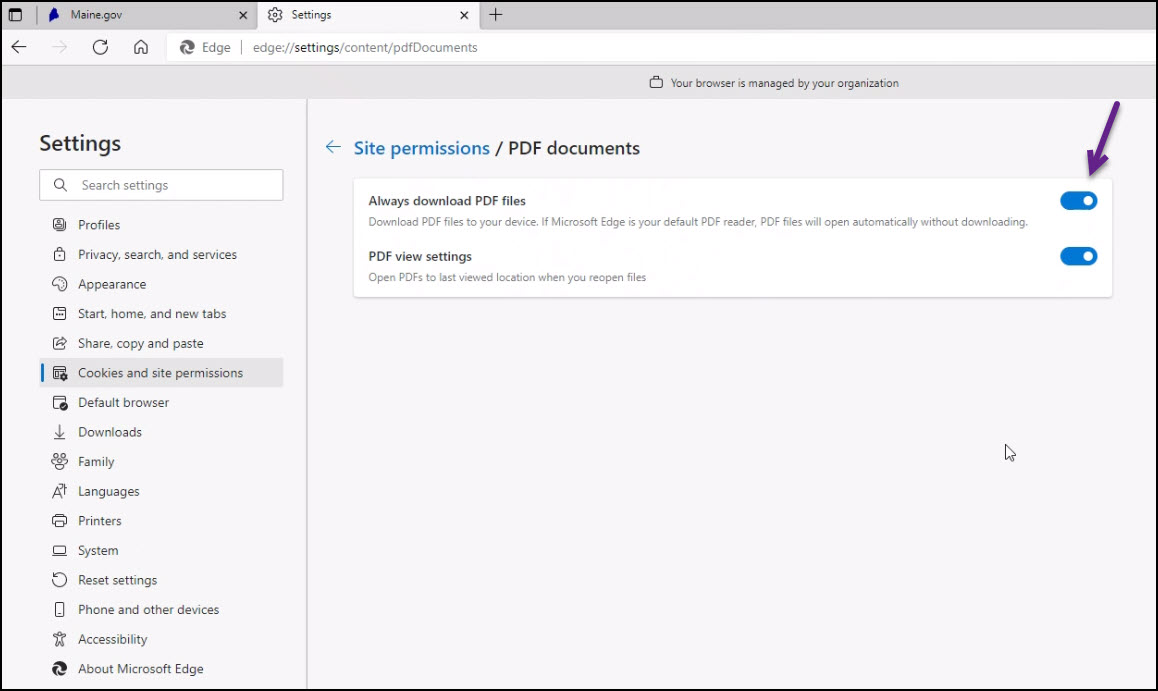
    • Turn on the indicator for Always download PDF files
    • Do not use both

      PDF settings in Edge browser image 4

  2. Chrome:
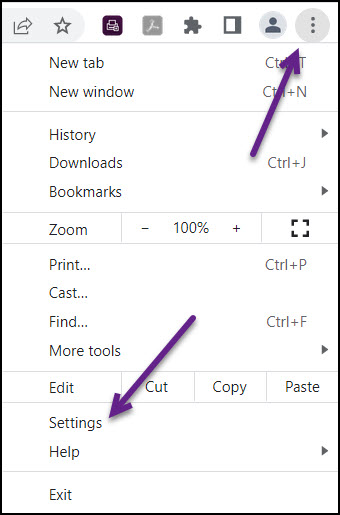
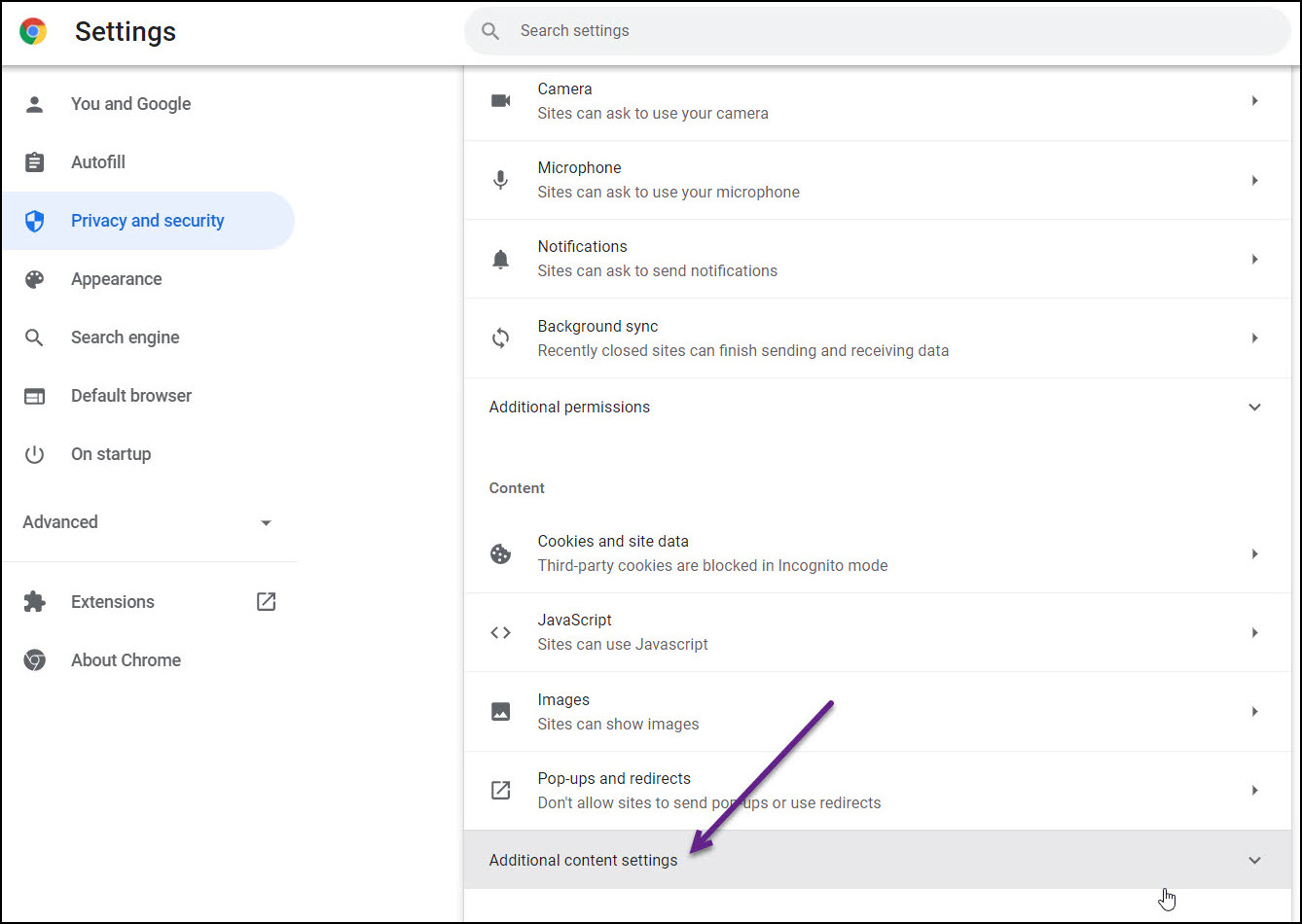
    • Open the Chrome browser and click on the three-dot icon at the top-right corner. Select Settings

      PDF settings for Chrome browser image 1

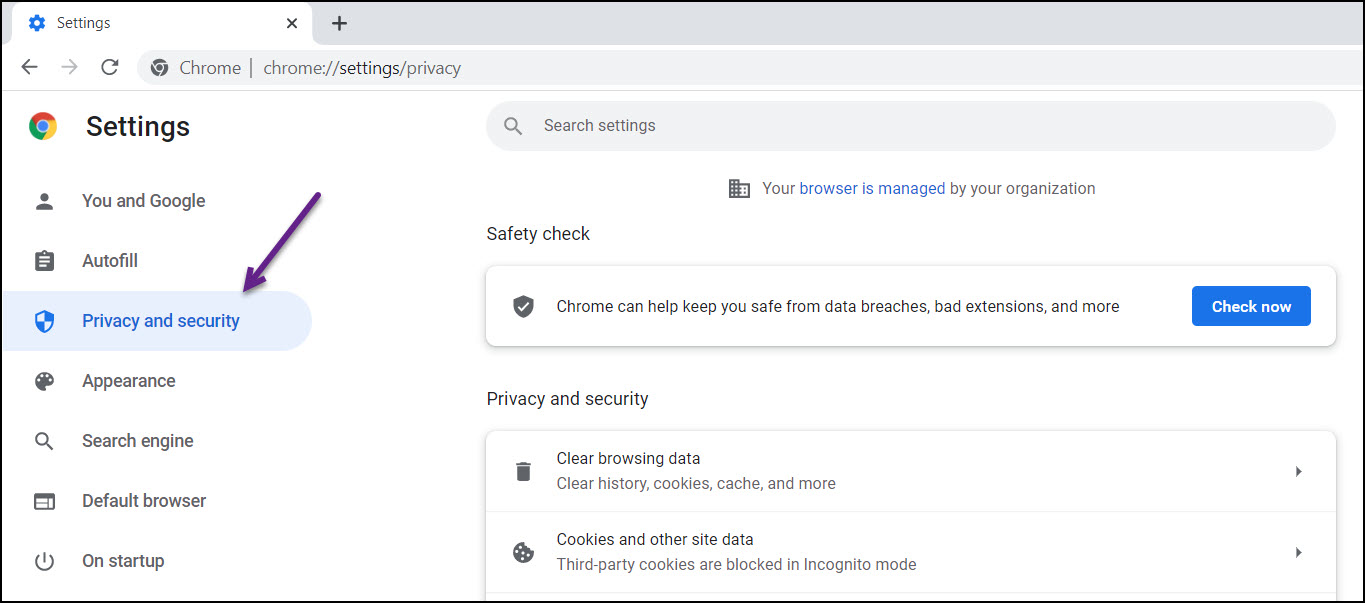
    • Select Privacy and security

      PDF settings in Chrome browser image 2

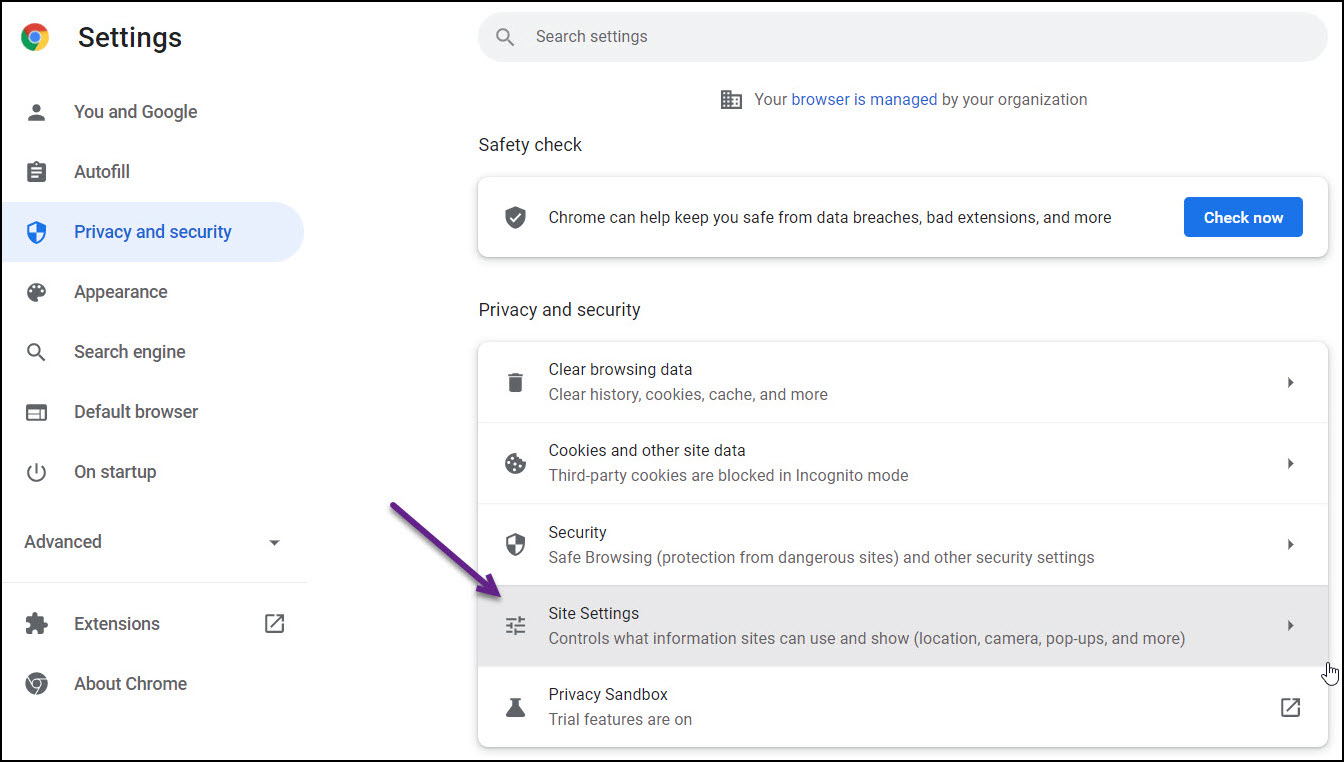
    • Select Site Settings

      PDF settings in Chrome browser image 4

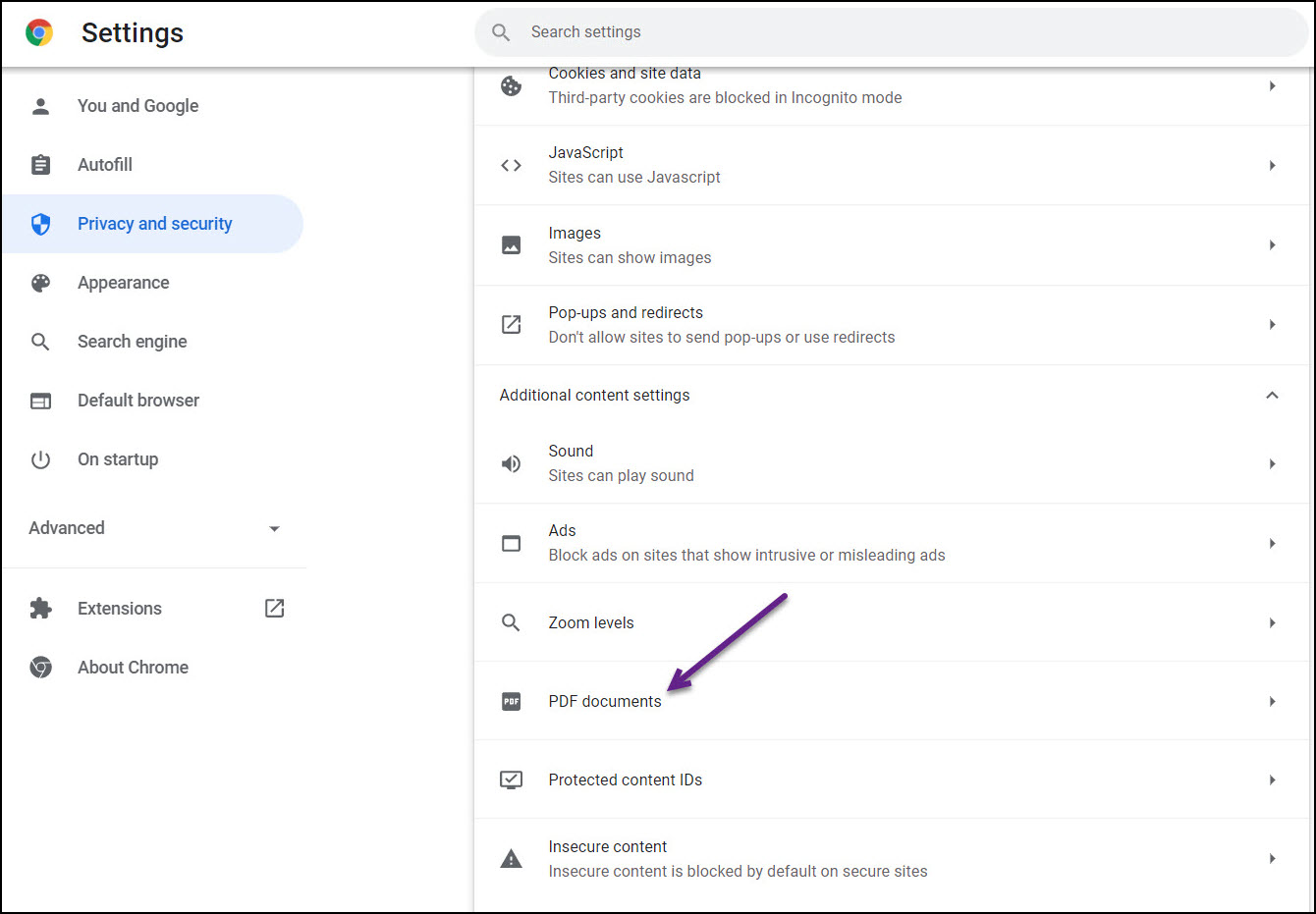
    • Scroll down to Additional content settings

      PDF settings in Chrome browser image 4

    • Select PDF documents

      PDF settings in Chrome browser image 5

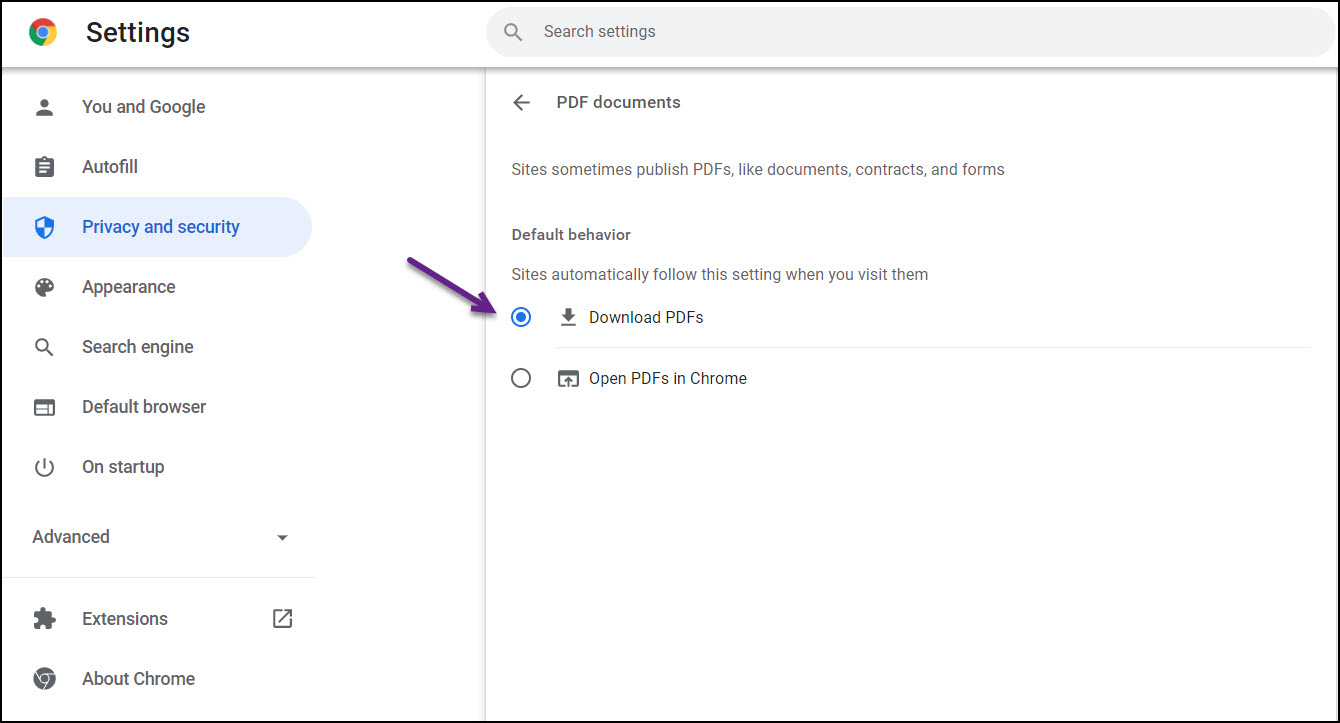
    • Select the radio button Download PDFs

      PDF settings in Chrome browser image 6


4. How do I check for/add trusted sites?

  1. Edge:
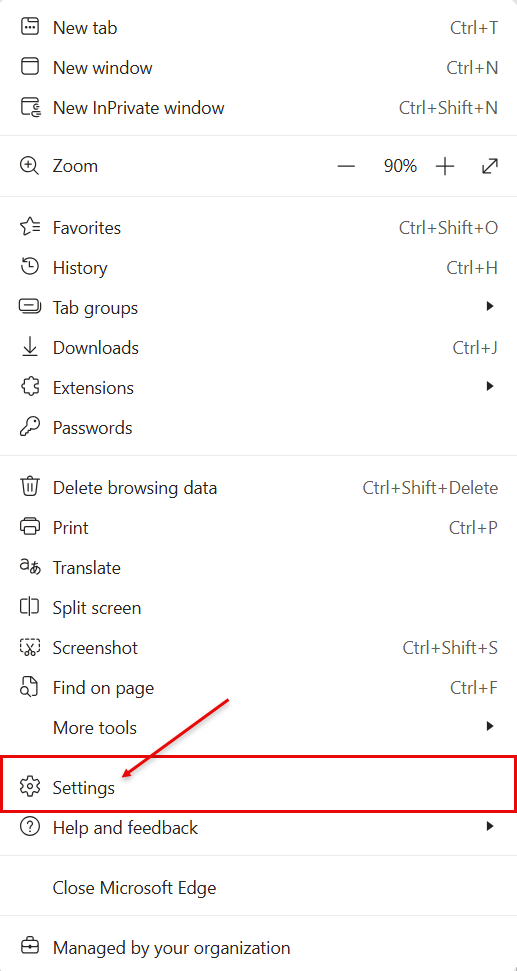
    • Click on the three dot (ellipses) menu at the top right-hand side of window
      Elipses menu for Edge

    • Click on Settings
      Settings for Edge

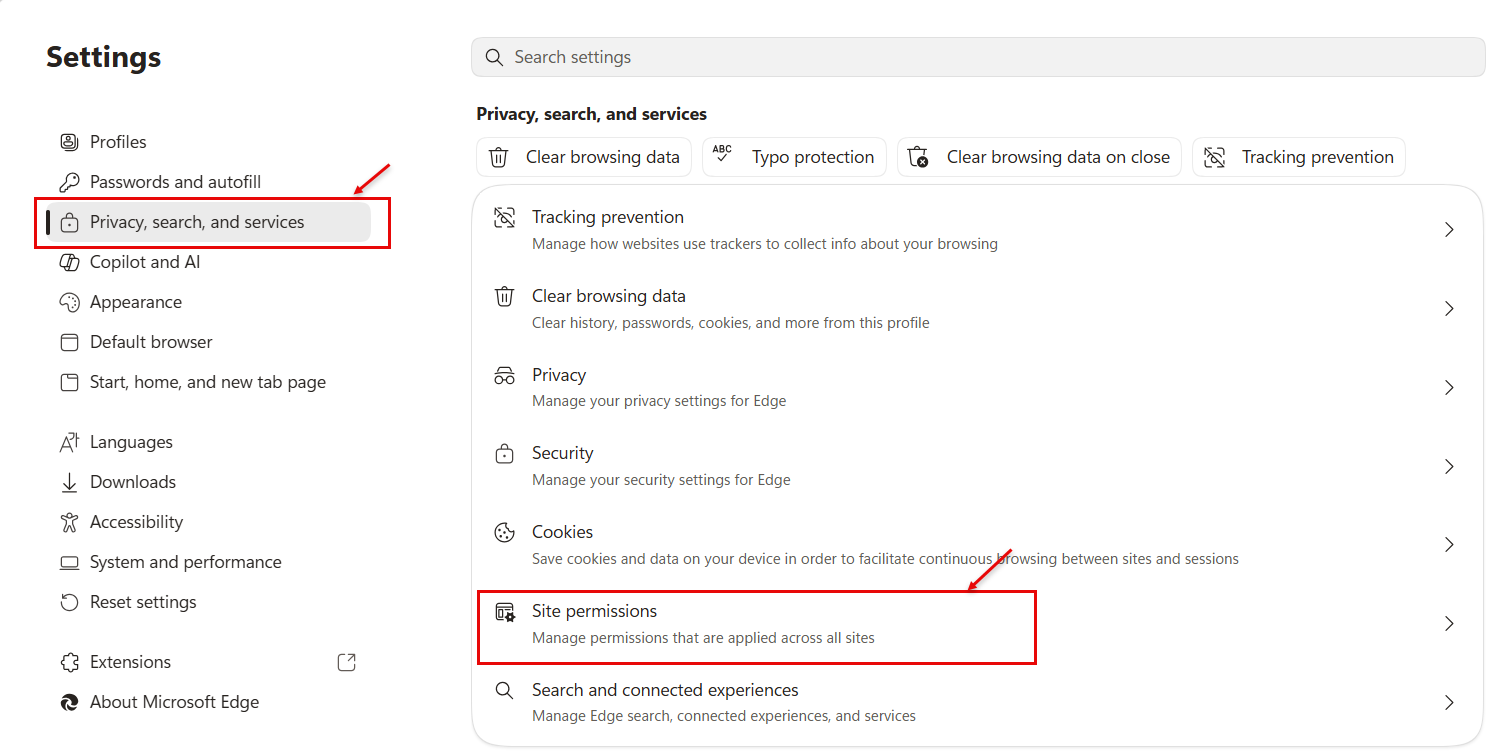
    • Click on Privacy, search and services
    • Click on Site Permissions
      Privacy, search and services for Edge

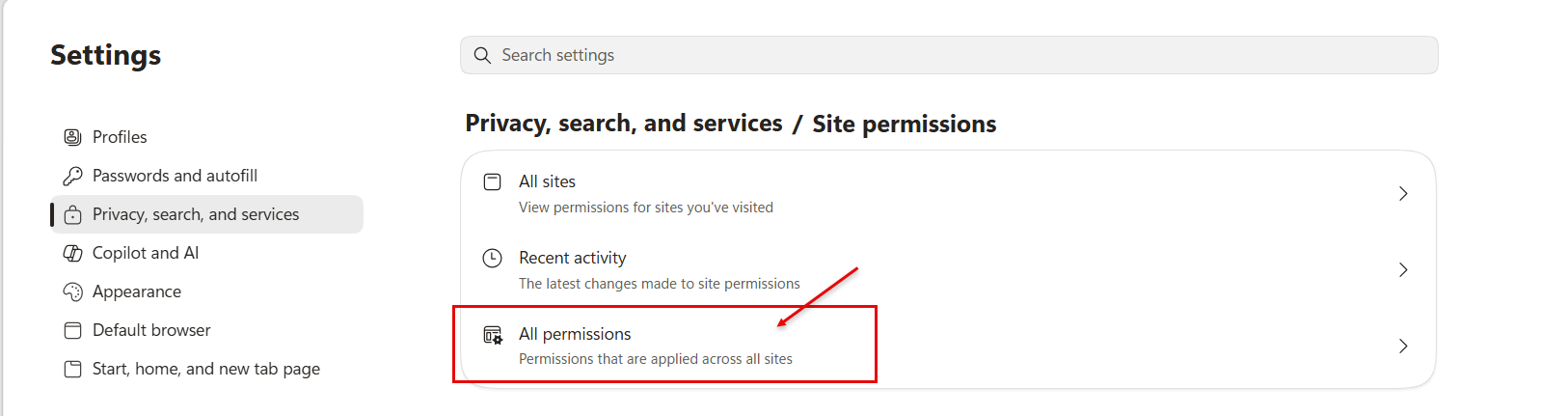
    • Click on All Permissions
      Site Permissions for Edge

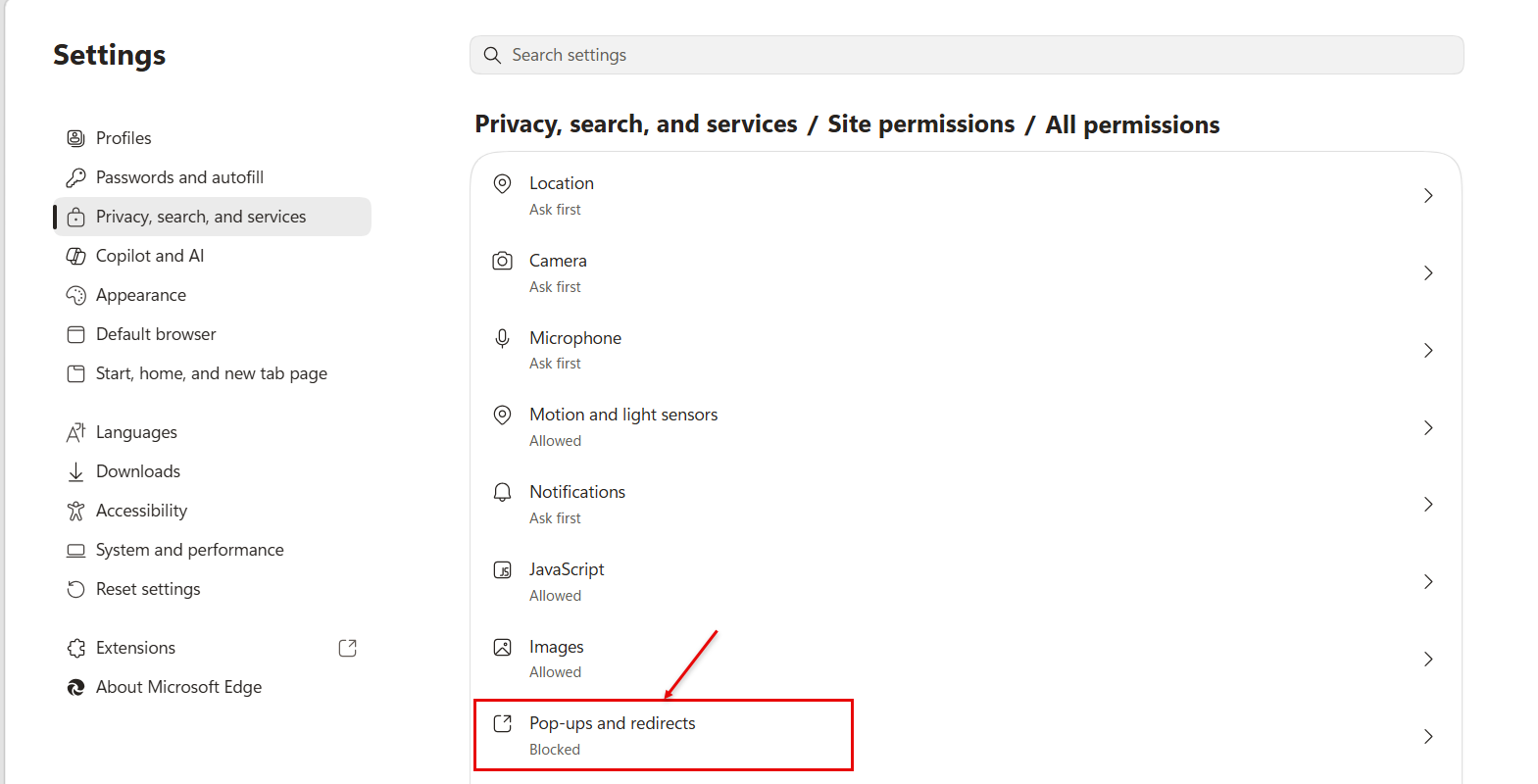
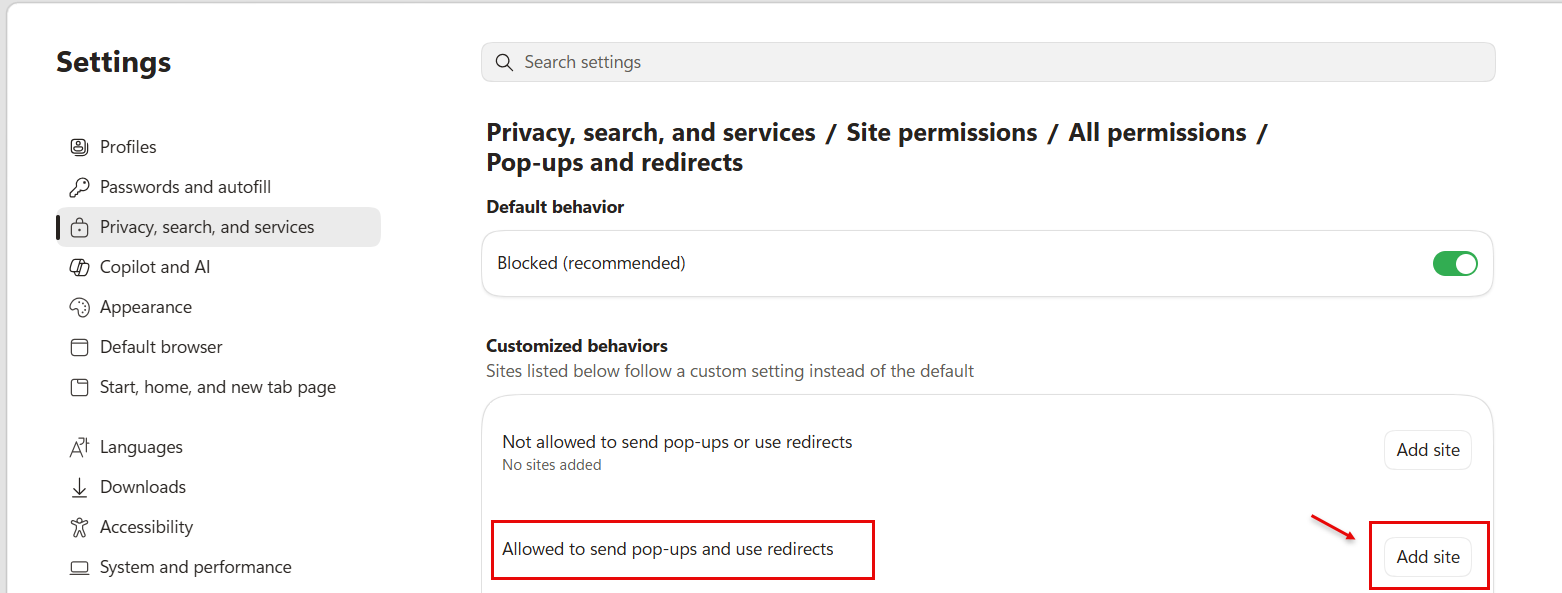
    • Scroll down to click on Pop-ups and redirects
      Popups and redirects for Edge

    • View Allowed to send pop-us and use redirects
    • There should be a url for Advantage (https://meosc.hostams.com)
    • If the url is missing, click Add site
      Allowed Popups and redirects for Edge

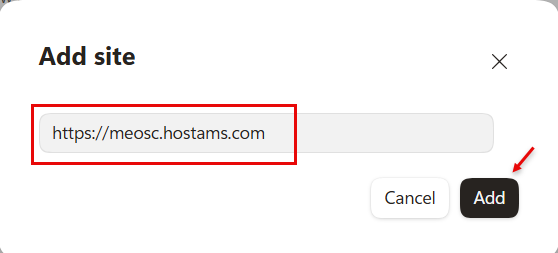
    • Enter the url (https://meosc.hostams.com)
    • Click Add
      Add trusted site for Edge

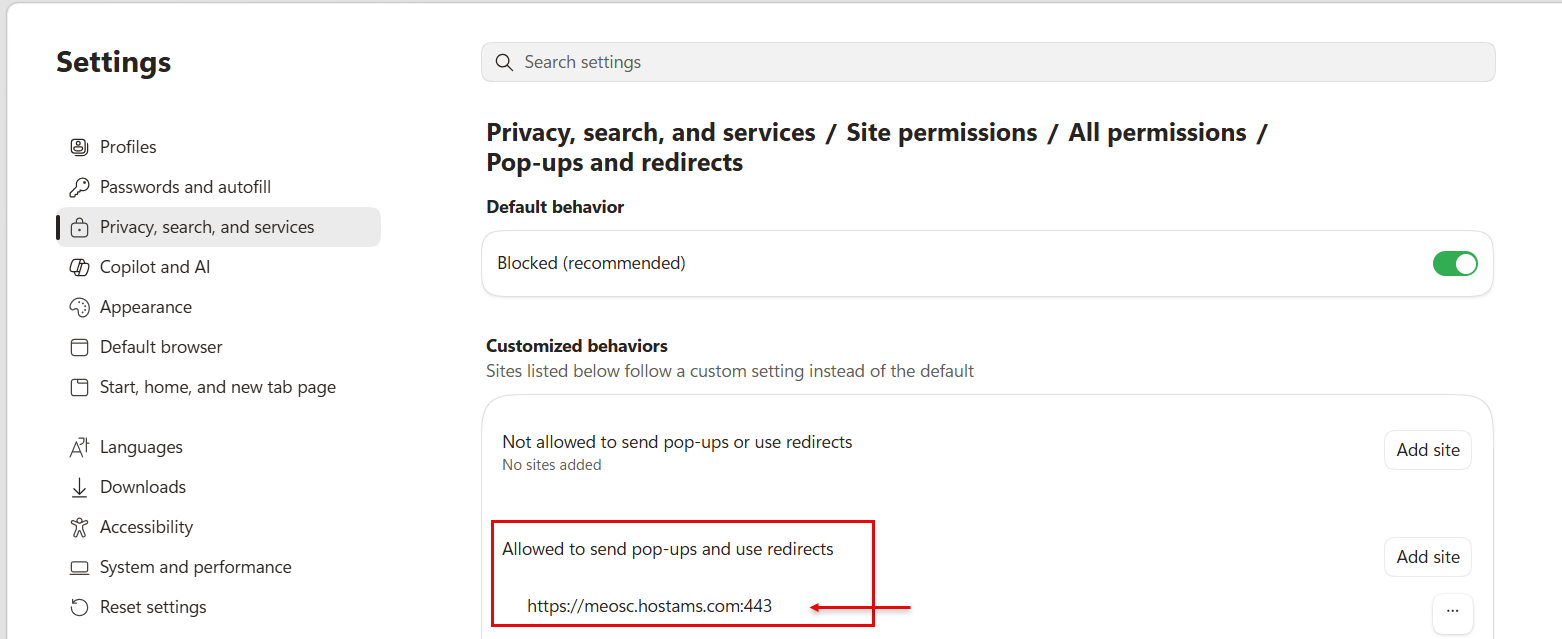
    • Notice that the url is now listed as allowed
      View trusted sites for Edge

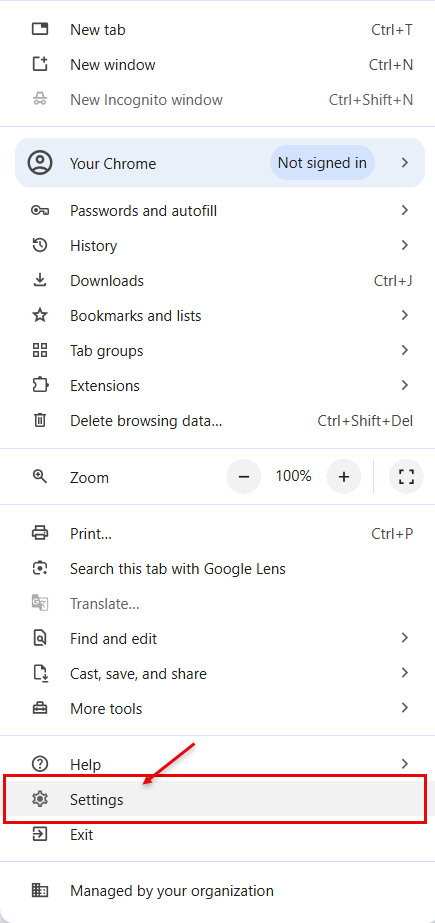
  2. Chrome:
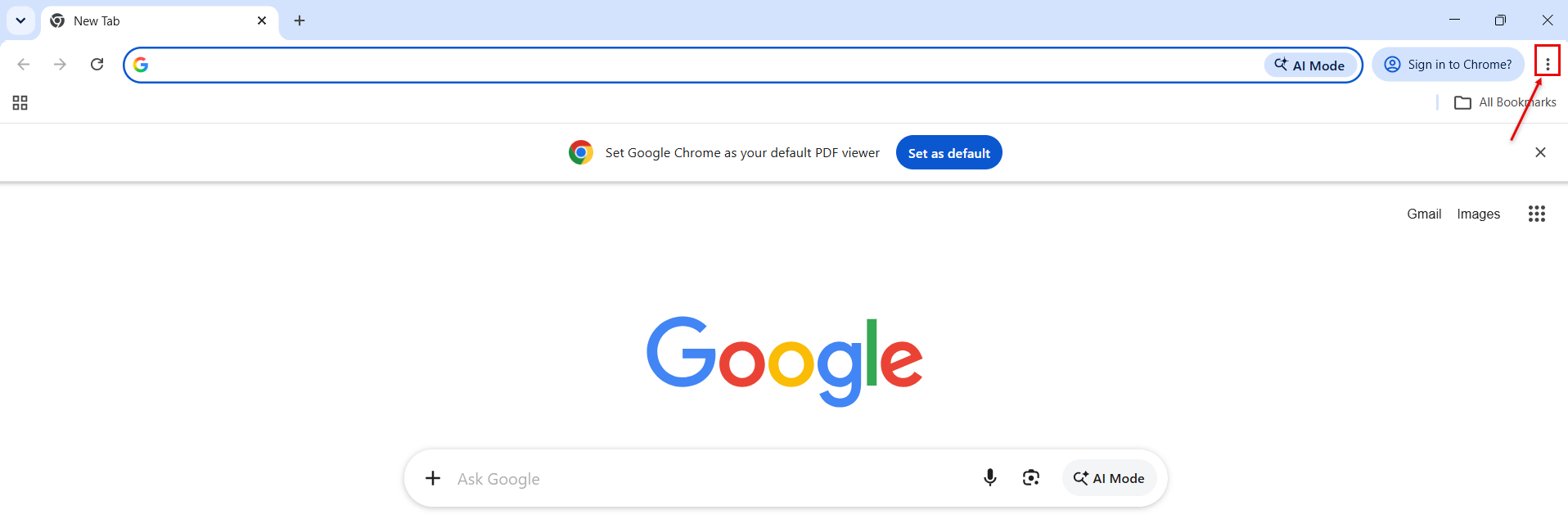
    • Click on the three dot (ellipses) menu at the top right-hand side of window
      Chrome three dot Menu

    • Click on Settings
      Chrome Settings
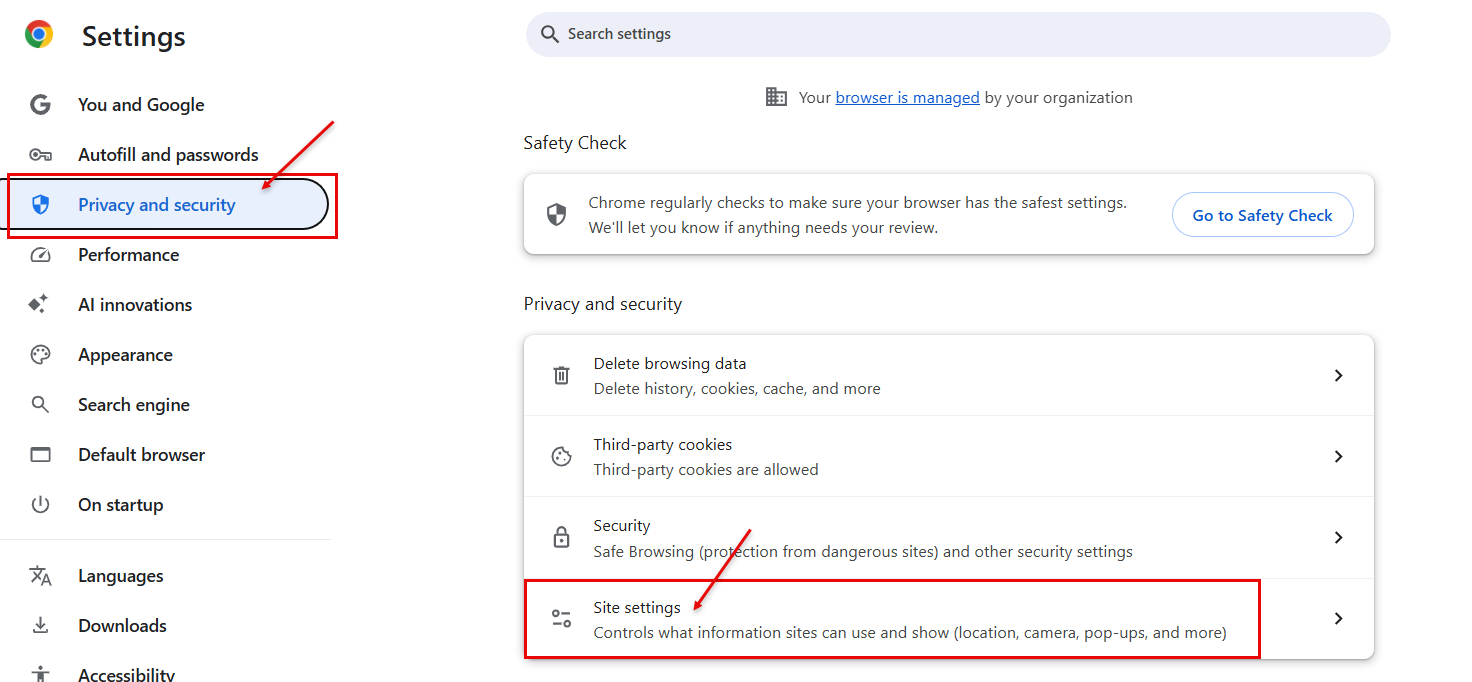
    • Click on Privacy and security
    • Click on Site Settings
      Chrome Privacy and security

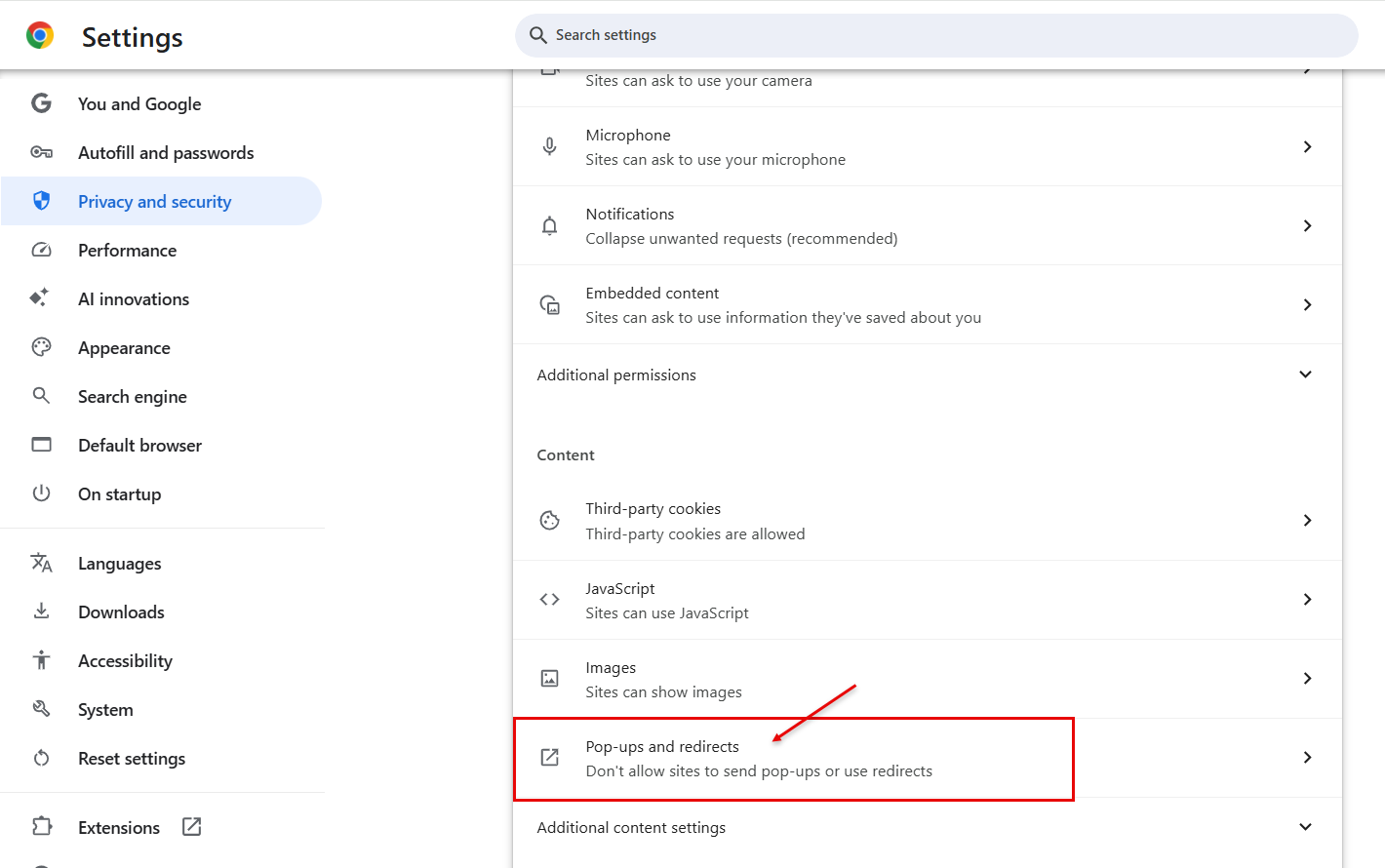
    • Scroll down to Pop-ups and redirects
      Chrome Pop-ups and redirects

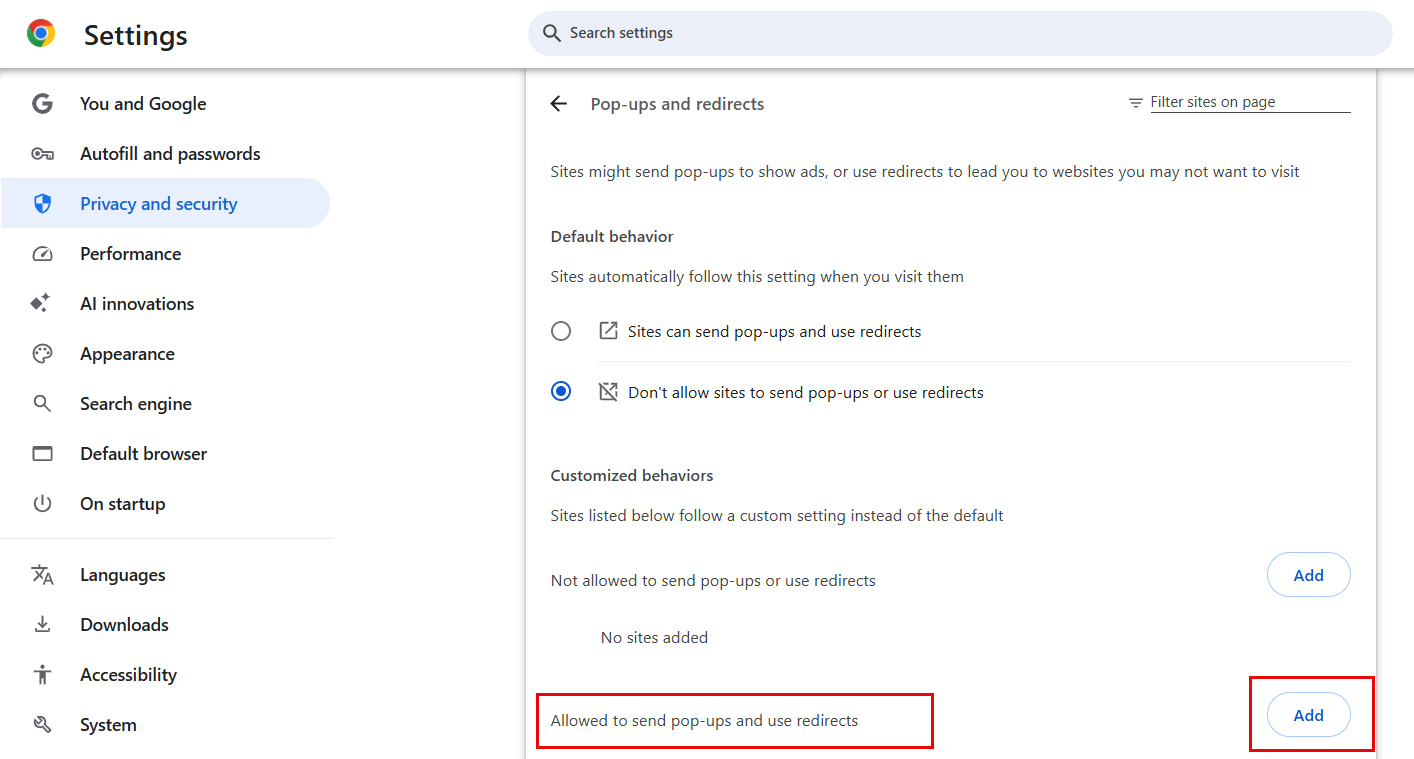
    • View Allowed to send pop-ups and use redirects
    • There should be a url for Advantage (https://meosc.hostams.com)
    • If the url is missing, click Add site
      Allowed to send pop-ups and use redirects in Chrome

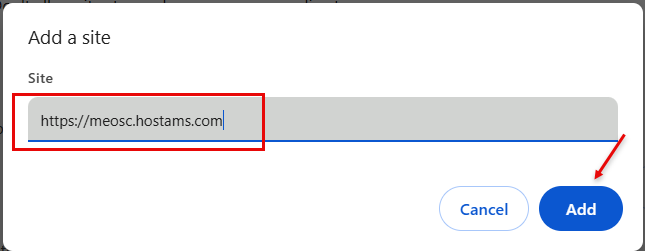
    • Enter the url (https://meosc.hostams.com)
    • Click Add
      Chrome Allowed sites for popups and redirects

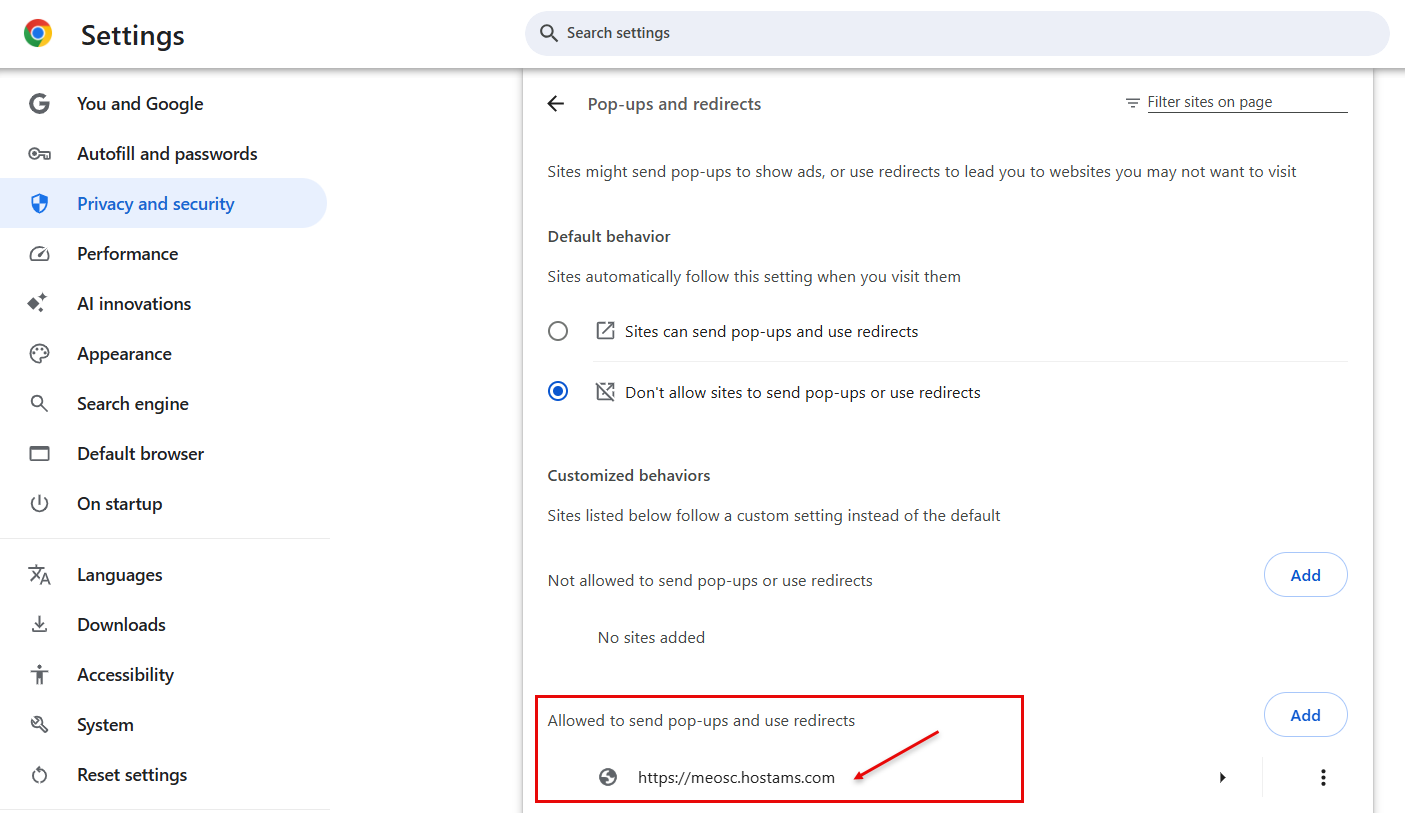
    • Notice that the url is now listed as allowed
      Chrome Allowed pop-ups and redirects listing


5. Are you having trouble printing from the REM's tables?

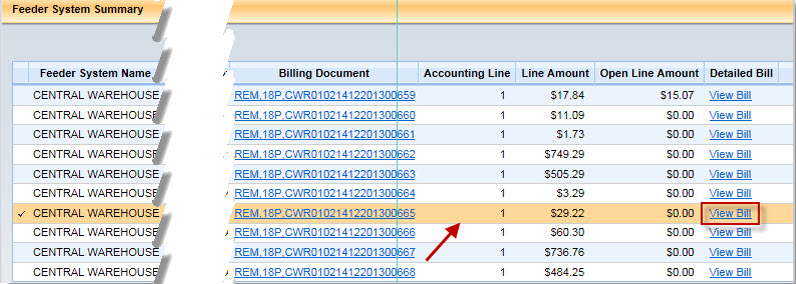
Be sure that you are highlighting the line that you want to print before selecting the "View Bill" link.

rems


Also, see FAQ #2 to see if those steps can help resolve your printing issues.


6. How do I obtain or update access to Advantage, DocuWare, the Cube, and/or the Data Warehouse?

Both the Advantage Security Application and the DAFS Analytics Warehouse/SQL Cube Applications can be found in the Security Applications section of the OSC Forms page. The Advantage Application is used to obtain access to DocuWare. http://www.maine.gov/osc/forms
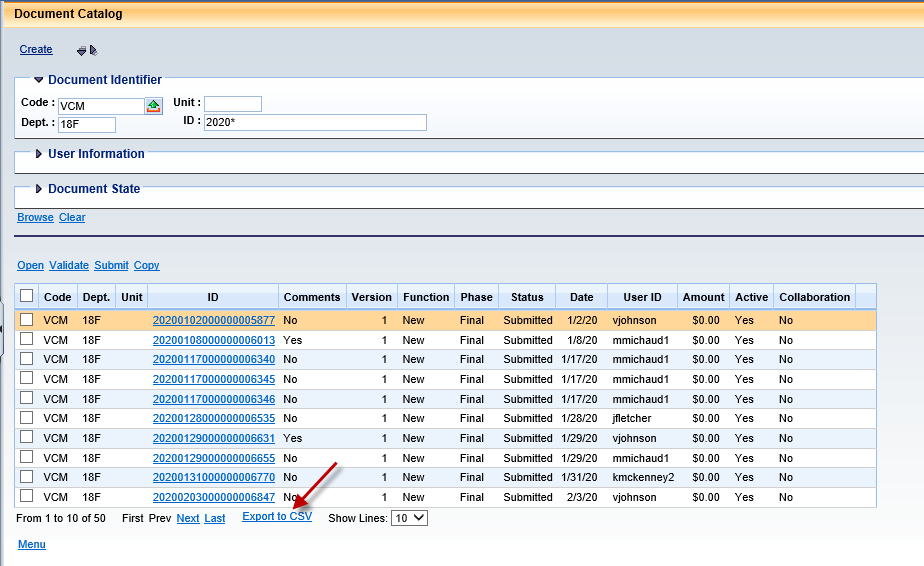

 

7. What is the process for importing a CSV file from Document Catalog?

  1. Export the documents through the Document Catalog using the Export to CSV option

    CSV Image 1

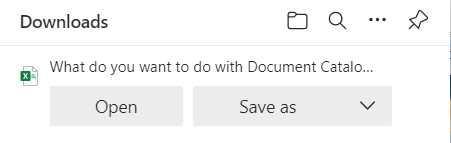
  2. Click Export to CSV - Choose Save As option CSV Image 2

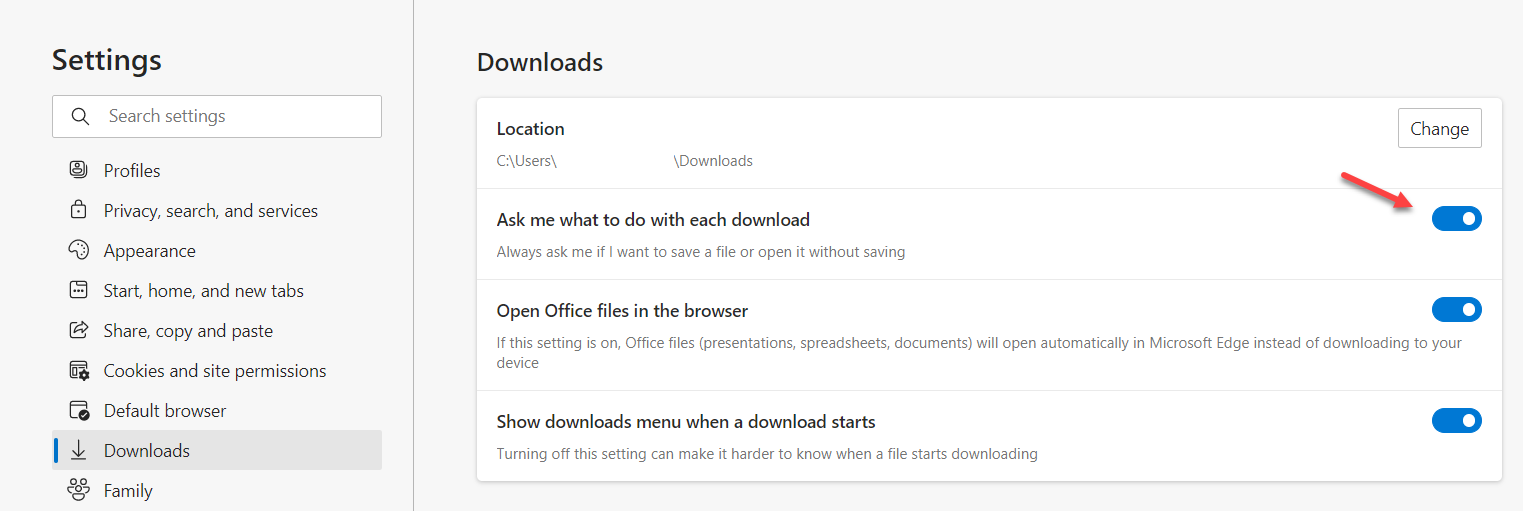
  3. Note: If you do not have the option to 'Save As', go to the browser settings, under Downloads, turn on 'Ask me what to do with each download'.
    CSV Image 2ACSV Image 2B

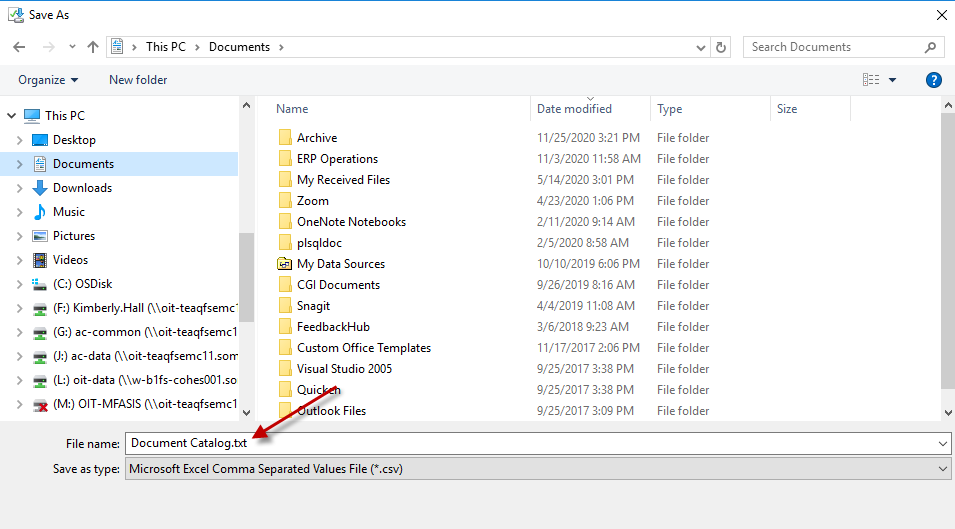
  4. Save file to Desktop or another folder on your computer. Change file extension from .csv to .txt

    CSV Image 3

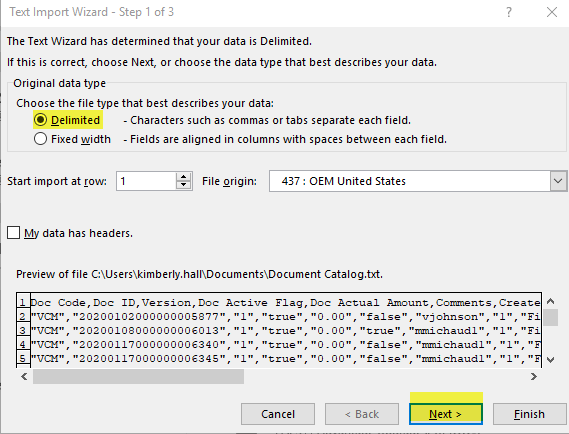
  5. Open Excel and select File - Open. Find the .txt file that was just saved. After selecting the file to open, the Text Wizard import will open. Select Delimited and click on Next

    CSV Image 4

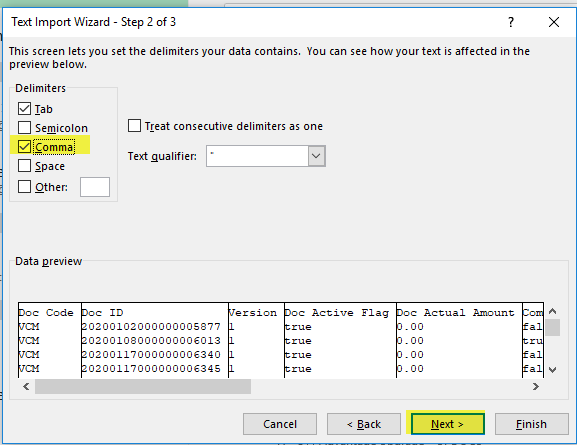
  6. Select the Comma Delimiters and click on Next (It displays the text into the Tabular format)

    CSV Image 5

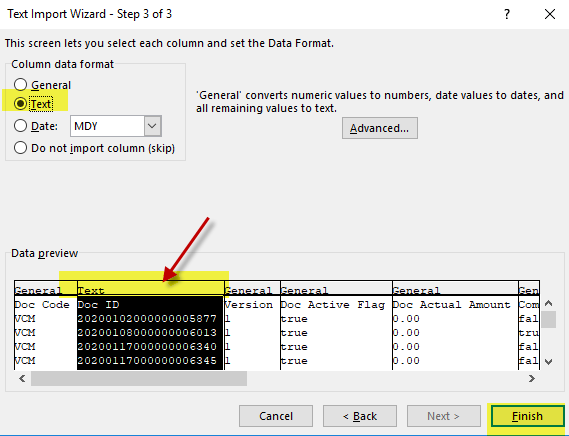
  7. By default, column data format is General. Select the Doc Id Column and change the Format to Text, and click on Finish (Selecting the Text format helps to remove the leading zeros)

    CSV Image 6

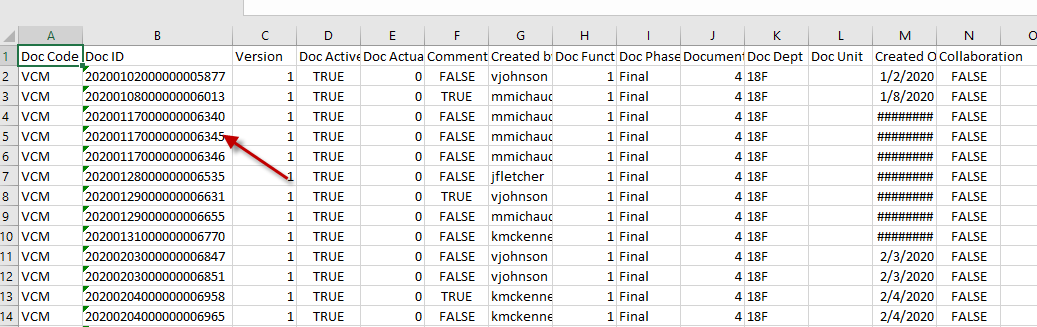
  8. Verify the information in Excel – the full Document Id should be imported

    CSV Image 7


For further questions, please contact us.

Advantage 3 Materials

About Advantage Materials

With introduction of the Advantage 4 system, the existing Advantage 3 materials will be temporarily housed on this site until the end of the 2026 calendar year. They will be removed after that time.

The new Advantage 4 materials can be found on the OSC Intranet site.


Advantage 3 Training Material
Document Date Format
3.11 Introduction to Advantage 10/15/2019 PDF
3.11 Glossary of Terms 10/15/2019 PDF
3.11 Document Approvals 02/13/2020 PDF
3.11 Reviewing Document Error Messages 10/15/2019 PDF
3.11 Setup a Contact Code 10/15/2019 PDF
3.9 Accounts Payable Manual 02/19/2016 PDF
3.8 CEC Document Instructions 06/14/2011 PDF
3.11 GAX Document Instructions 10/15/2019 PDF
3.11 PRC Document Instructions 10/15/2019 PDF
3.11 IET Document Instructions 10/15/2019 PDF
3.11 Payment Request for Multiple CT Documents Instruction 10/15/2019 PDF
3.11 Multiple Invoices to Pay a Single Contract Instructions 10/15/2019 PDF
3.11 Vendor Invoice Payment Inquiry Instructions 10/15/2019 PDF
3.9 Accounts Receivable & Advanced Billing Manual 05/12/2016 PDF
3.11 RE Document Instructions 10/15/2019 PDF
3.11 REMS/IETM - Process Payments against an Internal Service Bill 10/15/2019 PDF
3.11 REMS - View and Download Internal Service Bills (FSSUM) 10/15/2019 PDF
REMS Internal Service Prefix Table 05/26/2026 PDF
3.9 Credit Balance and Auto Netting Instructions 09/18/2013 PDF
3.9 Cash Receipts Manual 05/12/2016 PDF
3.11 CR Document Instructions 10/16/2019 PDF
3.11 CRAJ Document Instructions 10/16/2019 PDF
3.11 CRRT Document Instructions 10/16/2019 PDF
3.11 CRCC Document Instructions 10/16/2019 PDF
3.11 TRF Document Instructions 10/16/2019 PDF
3.11 Chart of Accounts & General Accounting Manual 10/30/2019 PDF
3.8 Cost Accounting Manual 06/08/2011 PDF
3.11 CAS Document Instructions (Entering a Grant) 10/23/2019 PDF
3.8 Entering a Project Instructions 06/08/2011 PDF
3.11 CAM Document Instructions (Modifying a CAS) 10/23/2019 PDF
3.9 Fixed Asset Manual 05/12/2016 PDF
3.9 FA Document Instructions 05/12/2016 PDF
3.9 FD Document Instructions (Dispose or Transfer Assets) 05/12/2016 PDF
3.8 FM Transfer to Surplus Instructions 03/04/2013 PDF
3.9 FA Unpend Asset Shell Instructions 05/12/2016 PDF
What Triggers a Fixed Asset Shell to be Generated 01/16/2018 PDF
3.11 ABSJ Document Instructions 10/17/2019 PDF
3.11 COAJ Document Instructions 10/17/2019 PDF
3.11 JV Document Instructions 10/17/2019 PDF
3.11 JVC Document Instructions 10/23/2019 PDF
3.11 Security & Workflow Manual 05/22/2022 PDF
3.8 Vendor/Customer Manual 12/22/2014 PDF
3.9 VCC - Entering a New Vendor Instructions 01/08/2018 PDF
3.9 VCM - Vendor Name Change Instructions 01/08/2018 PDF
3.9 VCM - Vendor Address Change Instructions 01/08/2018 PDF
3.9 VCM - Modifying Contact Info on Existing Vendor Instructions 01/08/2018 PDF
3.9 VCM - Modifying Vendor Name, Address and Contact Instructions 01/08/2018 PDF
3.9 VCM - Add New Contact Info on Existing Vendor Instructions 01/08/2018 PDF
3.8 VCM - Placing a Vendor on Hold Instructions or Inactivate 05/07/2013 PDF
3.11 VCM - How to Add Additional Address and Contact to Existing Vendor 04/27/2023 PDF
3.9 VCM - Modify Custodian on Petty Cash Account Instructions 10/04/2016 PDF
3.8 How to Search for a Vendor Address Instructions 11/07/2011 PDF
3.11 VCM - Suppress Billing Instructions 10/15/2019 PDF
3.11 VCM - Adding a New BPRO to a Customer Account Instructions 10/15/2019 PDF
3.11 VCM - Entering a New Customer Instructions 10/15/2019 PDF
3.11 VCM - Adding a Customer to an Existing Vendor Instructions 10/15/2019 PDF
3.11 Central Budgetary Tables Manual 10/16/2019 PDF
3.11 BQ90 Overview 10/16/2019 PDF
3.11 Budget Documents 10/16/2019 PDF

**Documents are supplied in PDF format and require the free Acrobat Reader for viewing or printing. If you need an alternate format, please contact us via email or phone (207-626-8420).

Vendor Information

Who is a Vendor?

Vendors can represent anyone receiving money from the State of Maine; such as service providers, clients, businesses and employees.

How does a Vendor receive payment?

To receive money from the State of Maine you must be enrolled in the State's vendor payment system (vendor file).

How to enroll in the vendor payment system?

To enroll in the vendor file, you must fill out and submit the Vendor Activation Form by U.S. Postal Mail to the Agency you are doing business with (e.g. Dept of Human Services, Dept of Labor, etc.). The Agency will enter the information into the system.

You MUST fill out the forms completely. Forms with missing information will NOT be processed. Please refer to the instructions for assistance in filling out the form.


NOTE: If you are a vendor wishing to bid for contracts and commodities with the State of Maine, please see the tab for Bidding Vendors.


Additional Information
Description
Vendor Activation/Change W9 Form and Instructions - See Forms Page: Vendor #1
Vendor Deactivation Form - See Forms Page: Vendor #2


Security

Reference Material
Description Date Format
Security & Workflow Manual 05/22/2022 PDF
Agency Security Coordinator List 09/17/2026 PDF
DAFS Analytics & SQL Financial Cube Security Application - See Forms Page: Security #2

**Documents are supplied in PDF format and require the free Acrobat Reader for viewing or printing. If you need an alternate format, please contact us via email or phone (207-626-8420).

Section Objectives:

  • Acquire the ability to prepare the Security Application
  • Understand security and workflow roles
  • Acquire a working knowledge of Security and Workflow
  • Understand the worklist functionalities
  • Change a password and create a password hint

This section will provide Agency Security Coordinators and Agency Supervisors working knowledge of how to create and update user profiles in Advantage. The Agency Security Coordinators and Supervisors are responsible for preparing the Security Application, understanding security and workflow roles, understanding worklist functionalities, and helping users to manage passwords.

This section will also discuss functionality for document approval processing. Advantage has the ability of routing documents through the Advantage workflow to one or more users for review/approval prior to finalizing the document. (Workflow provides the technical means of electronically routing document data to the next resource.) Agency Security Coordinators will be responsible for selecting the appropriate workflow roles based on users' approval rights when completing the Advantage Security Application.


Reporting & Research

DocuWare

Please Note: DocuWare has replaced the Fortis system.  Please reach out to security coordinators for access.

Reference Material
Description Date Format
DocuWare Training Guide 03/31/2022 PDF
DocuWare Importing Documents for Approval 03/24/2023 PDF
Advantage Security Form (includes DocuWare) - See Forms Page: Security #1


Advantage

Reference Material
Description Date Format
System Reports 12/08/2011 PDF

**Documents are supplied in PDF format and require the free Acrobat Reader for viewing or printing. If you need an alternate format, please contact us via email or phone (207-626-8420).


Petty Cash

**PLEASE NOTE: All documents relating to petty cash transactions, i.e. cash receipts and journals, must include the Vendor/Customer Number of the account being altered.

To create a new petty cash vendor, complete Petty Cash NEW form in which OSC will create VCC document.

To update the name of custodian on existing petty cash vendor, complete Petty Cash UPDATE form and Agency should prepare VCM document on Advantage.

NOTE: When closing out a petty cash account, please make sure that the account balance has been fully cleared out before preparing a VCM document to inactivate the Vendor Code.

Please inform the Controller's Office of any intention of opening or closing out a petty cash account.

Reference Material
Description Date Format
Petty Cash Procedures 02/10/2014 PDF
Petty Cash Checking Account Procedures 08/22/2012 PDF
VCM - Modify Custodian on Petty Cash Account Instructions 10/04/2016 PDF
Petty Cash Policy - See SAAM Page: Chapter 85 - Section 85.10
Petty Cash Form New - See Forms Page: Accounting #5
Petty Cash Form Update* - See Forms Page: Accounting #6
Annual Reporting
Description Date Format
Petty Cash Memo FY2027 09/15/2026 PDF
Petty Cash Annual Reporting Form FY2027 09/15/2026 Excel

**Documents are supplied in PDF format and require the free Acrobat Reader for viewing or printing. If you need an alternate format, please contact us via email or phone (207-626-8420).


Journal Information

Reference Material
Description Date Format
What Type of Journal Should I Use? 10/28/2019 PDF
Journal Voucher Guidelines 10/28/2019 PDF
Event Types 10/28/2019 PDF
Prior Year Adjustments   (Flowchart) 10/28/2019 PDF
Revenue Transfers 12/18/2025 PDF
Balance Sheet 0215 - Disbursements 10/28/2019 PDF
Advantage Journal Template - See Forms Page: Accounting #1

**Documents are supplied in PDF format and require the free Acrobat Reader for viewing or printing. If you need an alternate format, please contact us via email or phone (207-626-8420).

Please visit the Accounting FAQ section for additional information regarding journals.

Notes:

  • COAJ Documents:
    • Please make sure that COAJ documents are still prepared using the Journal Document Template. These documents, along with proper backup, are still sent for scanning into Fortis.
  • Please make sure to check the document comments regarding rejected documents before contacting OSC. If you still have questions about the reject after reading the comments, you can inquire further.
  • Please make sure to check document catalog for the status of journal processing. It is up to each agency to monitor their own journals. Especially during month, quarter and year end processing.
  • Please make sure to include Accounting Period on paper journals, especially during month, quarter and year end processing.

Header Information

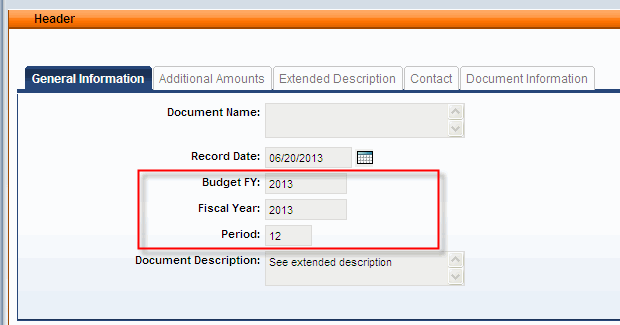
Please make sure to complete the header tab on your documents. This is very important during month, quarter and year end processing.

journal header


Section Objectives:

  • Understand the new chart of account elements in Advantage
  • Identify and configure key chart of account tables
  • Understand interrelationships and dependencies among the chart of account elements
  • Create an accounting template
  • Understand and use event types and posting codes
  • Understand the relationship between event types and required chart of account elements
  • Understand budget structures and their corresponding components, controls and their related chart of account elements
  • Create general accounting documents
  • Process Journal Voucher (JV)
  • Process Internal Exchange Transaction (IET)
  • Process Accounting Based Spending Adjustments (ABSJ)

Advantage's Chart of Accounts functionality provides an account structure to classify financial information according to the dimensions needed to support the various uses of the State of Maine's (SoM) financial information. In this way, you can measure where monies are collected and spent. You can categorize each transaction using independent characteristics so that you can record and report on financial activity. Another aspect of the chart of accounts is the consolidation of information into rollups that you can use for reporting and budgeting. The chart of accounts can accommodate many discrete elements, sub elements and multiple associations for establishing hierarchies and rollups.

Advantage addresses reporting needs - fund accounting, adherence to budget and other management tracking activities. Using its flexible coding structure, you can produce sets of financial reports in which the same dollar amounts can be classified in different ways: program managers receive reports that cut across organizational lines pertaining to specific programs; department managers receive reports for their organizations and programs; legislators receive appropriations reports. Advantage produces these reports from the same common database.


Subscribe to